

Insights from recent episode analysis
Audience Interest
Podcast Focus
Publishing Consistency
Platform Reach
Insights are generated by CastFox AI using publicly available data, episode content, and proprietary models.
Most discussed topics
Brands & references
Est. Listeners
Insufficient chart data. Estimates will improve as the show charts.
- Per-Episode Audience
Est. listeners per new episode within ~30 days
N/A🎙 ~2x weekly·75 episodes·Last published 2w ago - Monthly Reach
Unique listeners across all episodes (30 days)
N/A - Active Followers
Loyal subscribers who consistently listen
N/A
Market Insights
Platform Distribution
Reach across major podcast platforms, updated hourly
Total Followers
—
Total Plays
—
Total Reviews
—
* Data sourced directly from platform APIs and aggregated hourly across all major podcast directories.
On the show
From 12 epsHost
Recent guests
Recent episodes
📍 Pinpoint, Explained
Jun 5, 2026
7m 41s
🛑 Skip the Upgrade
May 21, 2026
1h 02m 51s
What I Learned About Time 🕰️
May 8, 2026
1h 04m 23s
✍️ Let AI Interview You
Apr 30, 2026
1h 11m 46s
My Quieter Toolkit 🌙
Apr 10, 2026
6m 46s
Social Links & Contact
Official channels & resources
Official Website
Login
RSS Feed
Login
| Date | Episode | Topics | Guests | Brands | Places | Keywords | Sponsor | Length | |
|---|---|---|---|---|---|---|---|---|---|
| 6/5/26 | 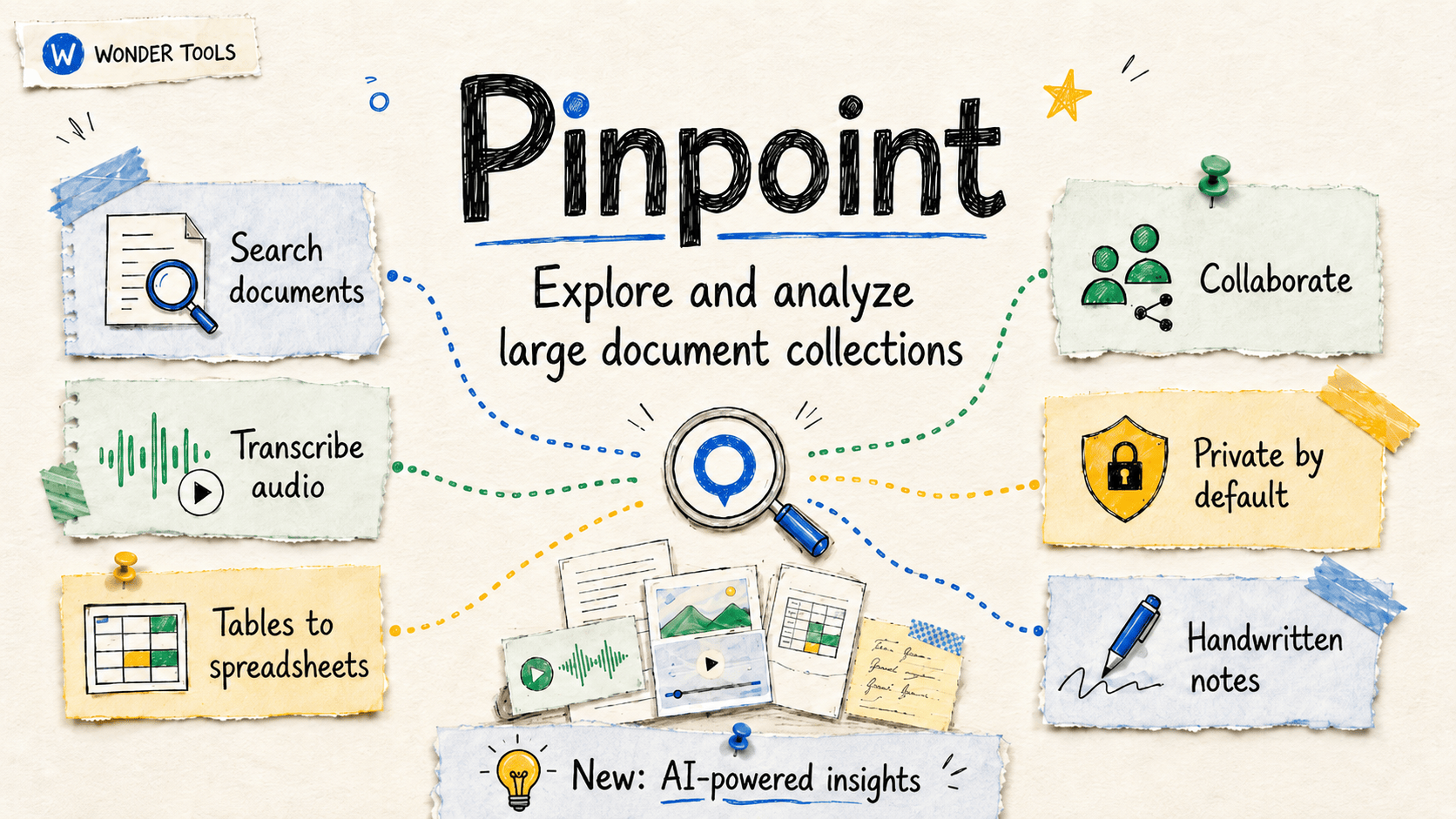 📍 Pinpoint, Explained✨ | digital toolsAI features+3 | — | PinpointNotebookLM+1 | — | PinpointGoogle+3 | — | 7m 41s | |
| 5/21/26 |  🛑 Skip the Upgrade✨ | gadgetstechnology+3 | Eric Athas | New York TimesSaying No to New | — | gadgetstechnology+3 | — | 1h 02m 51s | |
| 5/8/26 |  What I Learned About Time 🕰️✨ | time managementproductivity+3 | Laura Vanderkam | 168 HoursTranquility by Tuesday+1 | — | time abundanceeffortful before effortless+3 | — | 1h 04m 23s | |
| 4/30/26 |  ✍️ Let AI Interview You✨ | AI interactioncreative process+3 | Jay Dixit | Socratic AINarratively Academy | — | AIinterview+5 | — | 1h 11m 46s | |
| 4/10/26 | 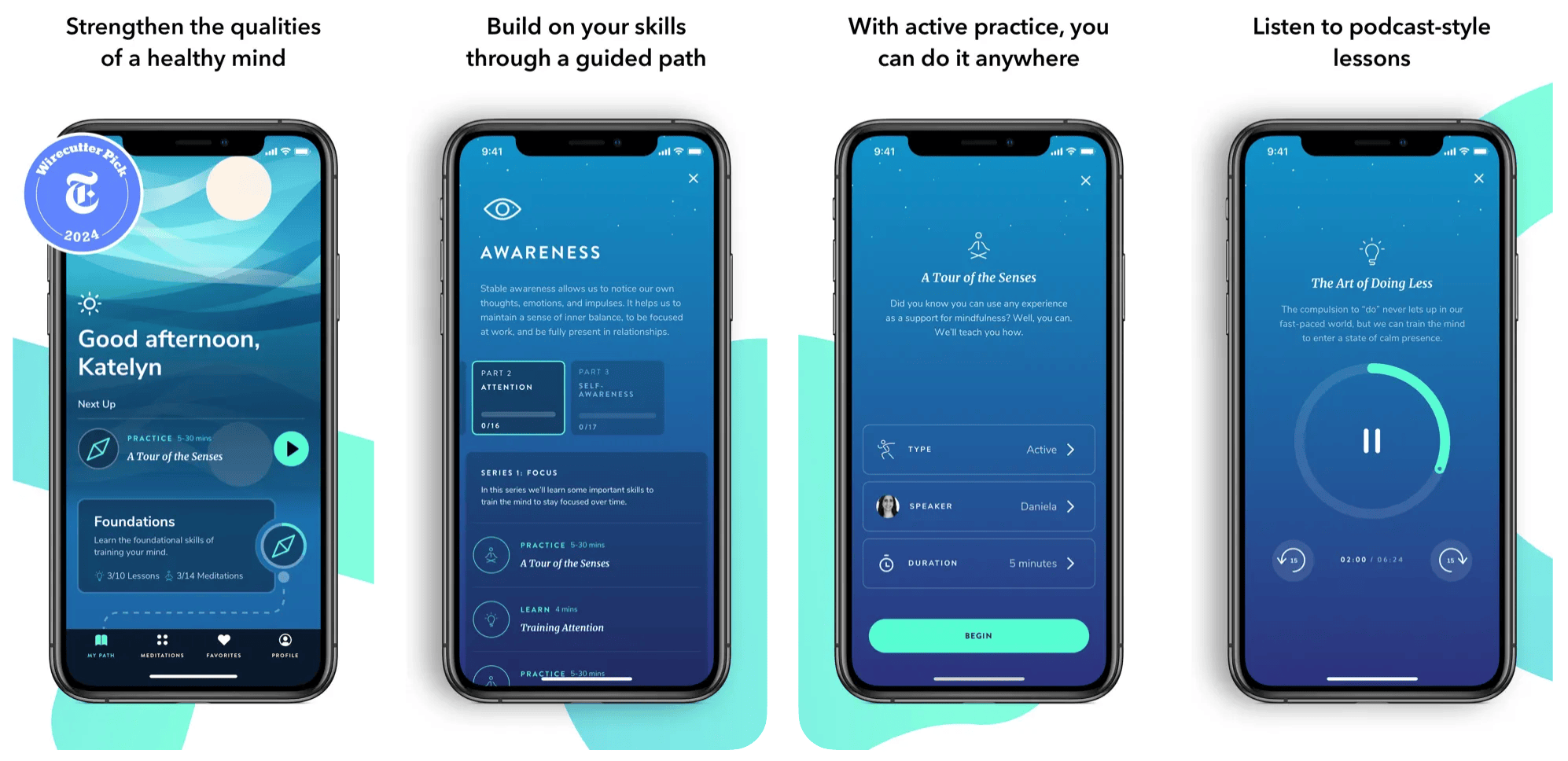 My Quieter Toolkit 🌙✨ | productivitymindfulness+4 | — | Healthy MindsHeadspace+7 | — | mindfulnessapps+5 | — | 6m 46s | |
| 4/4/26 | 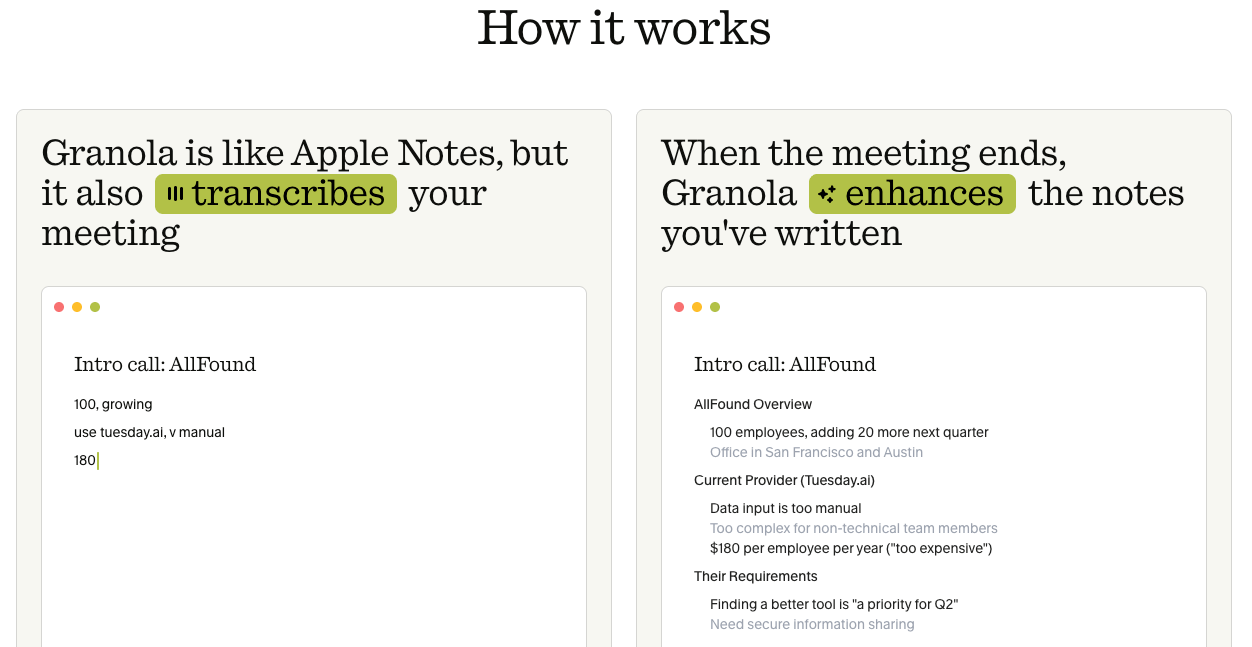 Meet Granola AI ✨✨ | AI note-takingproductivity tools+3 | — | Granola AIGoogle+3 | — | Granola AInote-taking+3 | — | 13m 41s | |
| 3/27/26 |  AI, Art, and Drawing the Line 🖌️✨ | AIart+4 | Jason Chatfield | Claude ProjectLetterly+2 | — | AIart+5 | — | 47m 08s | |
| 3/20/26 |  ☀️ My Morning Toolkit✨ | morning routinetechnology tools+3 | — | Peakeep “Invisible” Alarm ClockOura Ring+1 | — | morning appsproductivity tools+3 | — | 3m 27s | |
| 3/5/26 |  Teach Smarter with AI✨ | AI in educationteaching strategies+3 | Lance Eaton | Northeastern UniversityAI + Education = Simplified | — | AIeducation+5 | — | 1h 04m 04s | |
| 2/27/26 |  📚 Find Fantastic Books✨ | readingbook recommendations+3 | — | Goodbooks.ioRead This Twice+9 | — | booksreading recommendations+3 | — | 7m 11s | |
Want analysis for the episodes below?Free for Pro Submit a request, we'll have your selected episodes analyzed within an hour. Free, at no cost to you, for Pro users. | |||||||||
| 2/13/26 |  Make Gatherings More Engaging ✨✨ | engagementteaching tools+3 | — | PadletKahoot+1 | — | engagementteaching+5 | — | 10m 15s | |
| 2/6/26 |  Top Teaching Tools for 2026 🏆✨ | educational toolsteaching resources+3 | — | City University of New YorkInstructure+1 | — | teaching toolsedtech+4 | — | 18m 17s | |
| 1/30/26 | 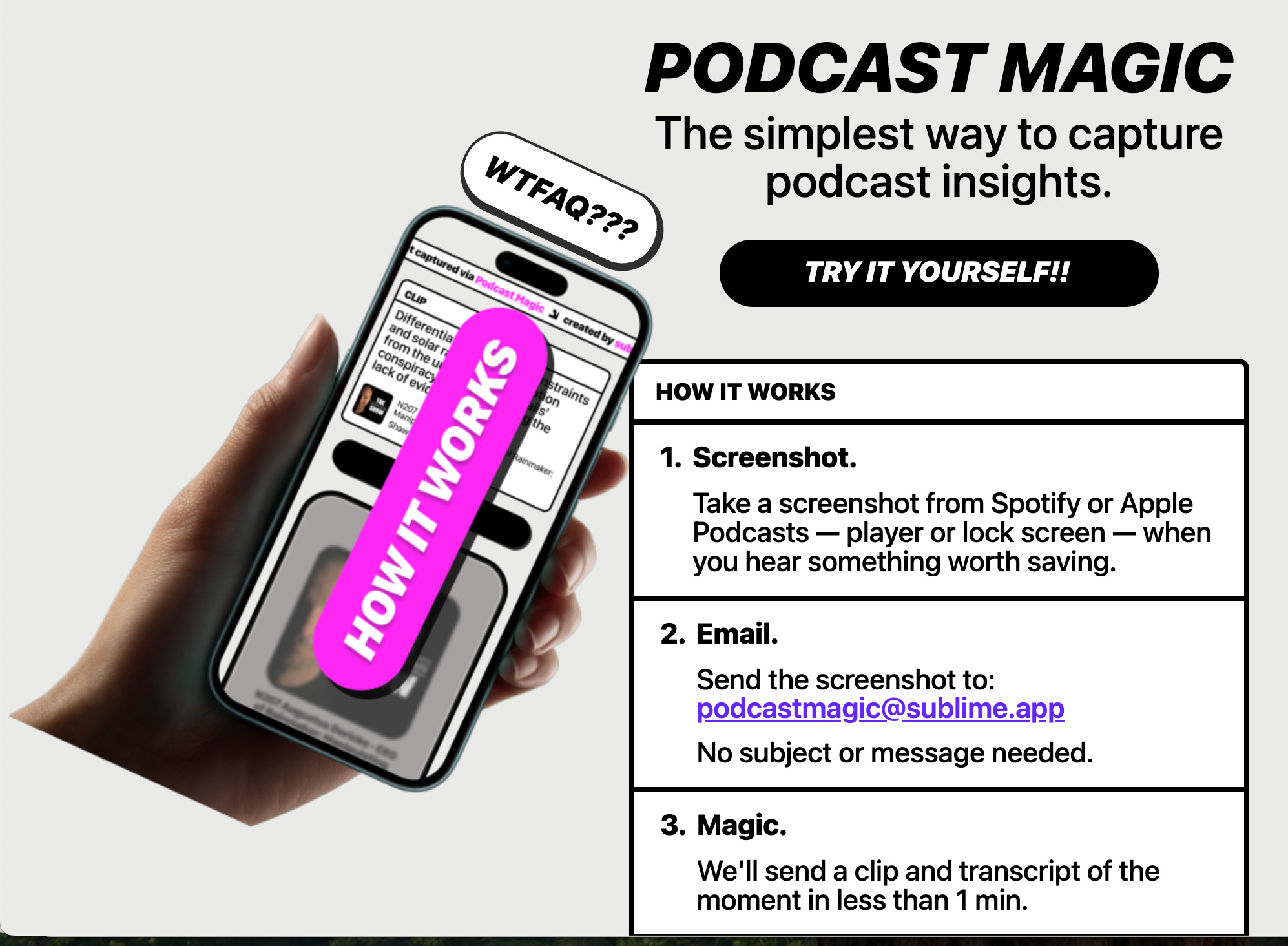 🎧 Podcast Overload? Here's My Fix | More than 600,000 podcasts released 27 million episodes in 2025. Keeping up with even a tiny fraction of those 70,000+ daily releases is impossible. So I’ve been exploring new ways to keep up with audio: podcast summaries, audio digests, and cool new tools for finding and saving audio highlights. Podsnacks — Get podcast summaries by emailGet podcast summaries delivered to your email. Catch up on shows you don’t have time to listen to. The free digest includes AI-generated summaries drawn from 25 of the most popular news, business, and tech podcasts. For $5/month, you can get a daily digest of any five podcasts you want. Snipcast is an alternative that offers 2 summaries a month for free or 50 episode summaries for $8/month. TL;DL by Headliner — Listen to podcast digests If you want to listen to podcast summaries, try TL;DL. Pick up to five podcasts to summarize in 5, 10, 15, or 20 minutes. I like that it’s not just an AI-voiced synthesis, but includes excerpted audio clips. You can always click through to hear the full episode. Caveat: expect to wait at least five minutes for each summary, and it’s still in beta. I run into occasional errors.Examples: Listen to this summary from my recent podcast interview with Azeem Azhar. Or try this summary of an episode of Shankar Vedantam’s terrific Hidden Brain podcast.Sponsored MessageMake your own site with LovableTurn your idea into something real. Describe what you have in mind and Lovable makes it into a site or app anyone can visit online.Whether you want a new site for your business or a new portfolio for your work, Lovable is a fast way to create without hiring anyone or mastering complex tech. For inspiration, check out slick templates or hundreds of cool apps others have built with Lovable. No need to write code. Just chat with Lovable to quickly start a project. What are you going to make? Snipd — My favorite podcast app Snipd keeps improving. I rely on it mainly because it lets me save highlights from podcasts I’m listening to by tapping my AirPods. The app also provides detailed podcast summaries so I can decide what to listen to. Among the new features I like most: * Skip intros and outros that clutter up many podcasts. * AI chat with any episode to ask for best quotes, must-listen moments, key takeaways, clarification of a complex idea, or whatever else you want. * I love the new “mentioned books” tab. It shows all the books discussed on a particular podcast. Click on a cover to learn more about the author and to see a list of podcasts where that book was discussed. * Search by guest. Find and listen to all the podcasts where your favorite author/musician/guru has been interviewed. * Listen and highlight audiobooks. Connect a Libro.fm audiobook account and import books with one click to listen to and highlight on Snipd. (Libro supports your local bookstore). Alternatively, find free public domain audiobooks at LibriVox. You can manually upload your own audiobooks.Podcast Magic — Save a key audio momentWhen you’re listening to a podcast on Spotify or Apple Podcasts and want to save a highlight, take a screenshot and email it to podcastmagic@sublime.app. You’ll get emailed back an audio clip and transcript of the key moment to save or share. It’s a clever way to easily save and share a quote or anecdote. Example: One show I highlighted recently was Audio Flux, which The New Yorker picked as one of the 10 best podcasts of 2025. The all-star audio duo commissions and spotlights bold, short-form audio stories. (You can also follow Team Audio Flux on Substack).Listen Notes Search for podcast mentionsFind podcast episodes where you’re mentioned. Type in your name or the name of your organization and search. Or look for interviews with a favorite author or musician. Other useful features: * Curated Lists: See recommendations from publications, like the 6 health care podcasts or 7 podcasts for bookworms the NYTimes recommended. * Listen Later: Make and share a curated podcast playlist. The playlist has an RSS feed that you can add to any major podcast player. Here’s a playlist of a few shows I like. Here’s a longer list of my favorites. Podchaser is a good alternative when you’re looking by topic. I discovered new podcasts about tennis and classical music. Also try the new advanced search by combining terms.EarBuds Podcast Collective, founded by podcast guru Arielle Nissenblatt, shares well-curated podcast recommendations. Each week a guest picks five shows to recommend. Example: 5 podcasts about bodies and how we see ourselves. Also: CBC’s Podcast Playlist (RIP) was a great show featuring highlights from all sorts of podcasts. The archive is full of great episodes.Perplexity Voice Mode for Web, iOS and AndroidWhen I don’t have my computer, I prefer searching with my voice to thumb typing on my phone. Querying Perplexity verbally when I’m walking or when my fingers are freezing is convenient because it answers with audio quickly and accurately. I can ask follow-ups for clarification or elaboration. These iterative search conversations let me steer the exploration toward what’s most useful. Example: a screenshot of Perplexity’s short reply when I asked what voice search is useful for. Tip: ask Perplexity for its sources to verify its results; voice searches don’t surface those unless you ask. Voicebox — Collect audio feedback Create your own inbox for voice input. Give anyone your Voicebox link or QR code, and they can leave you an audio message. No typing, no downloads, no forms to fill out. They just share their thoughts in a simple voice memo. It’s like an answering machine for the digital era. Voicebox is marketed as a B2B tool, but anyone can use it as an individual.Try it: Leave me a voice message about one thing you do that AI will never be able to replicate. Optionally include your name and email. Send an audio note: Tuttu is a super simple free site where you can record and share a voice note. Then email a link to that audio or embed it. Here’s a quick example I recorded about 3 ways you can use Tuttu.Alternative: VideoAsk is a slick tool for collecting video or audio feedback instead of a dull form. You can gather 20 minutes of input each month for free. Collecting 100 monthly minutes costs $24/month billed annually. Rover AI — Get audio briefs to answer questions Rover is an early-stage app that answers your questions with AI-generated audio briefs. Type in a query, wait a few minutes, then listen to your 2-3 minute audio conversation between two AI hosts. Unique feature: Choose from three alternative responses to your query. Example: Listen to a short audio debate about whether Jonathan Franzen is overrated or a genius.Alternatives: NotebookLM, which I’ve written about, does a fantastic job of creating audio summaries —or even debates— exploring complex topics. And Huxe, which I wrote about last week, creates useful personalized audio updates. Rover is an earlier-stage experiment, by contrast, focused on brief audio answers to eclectic queries. Become a tester to try it out. This is a public episode. If you'd like to discuss this with other subscribers or get access to bonus episodes, visit wondertools.substack.com/subscribe | 8m 43s | ||||||
| 1/23/26 | 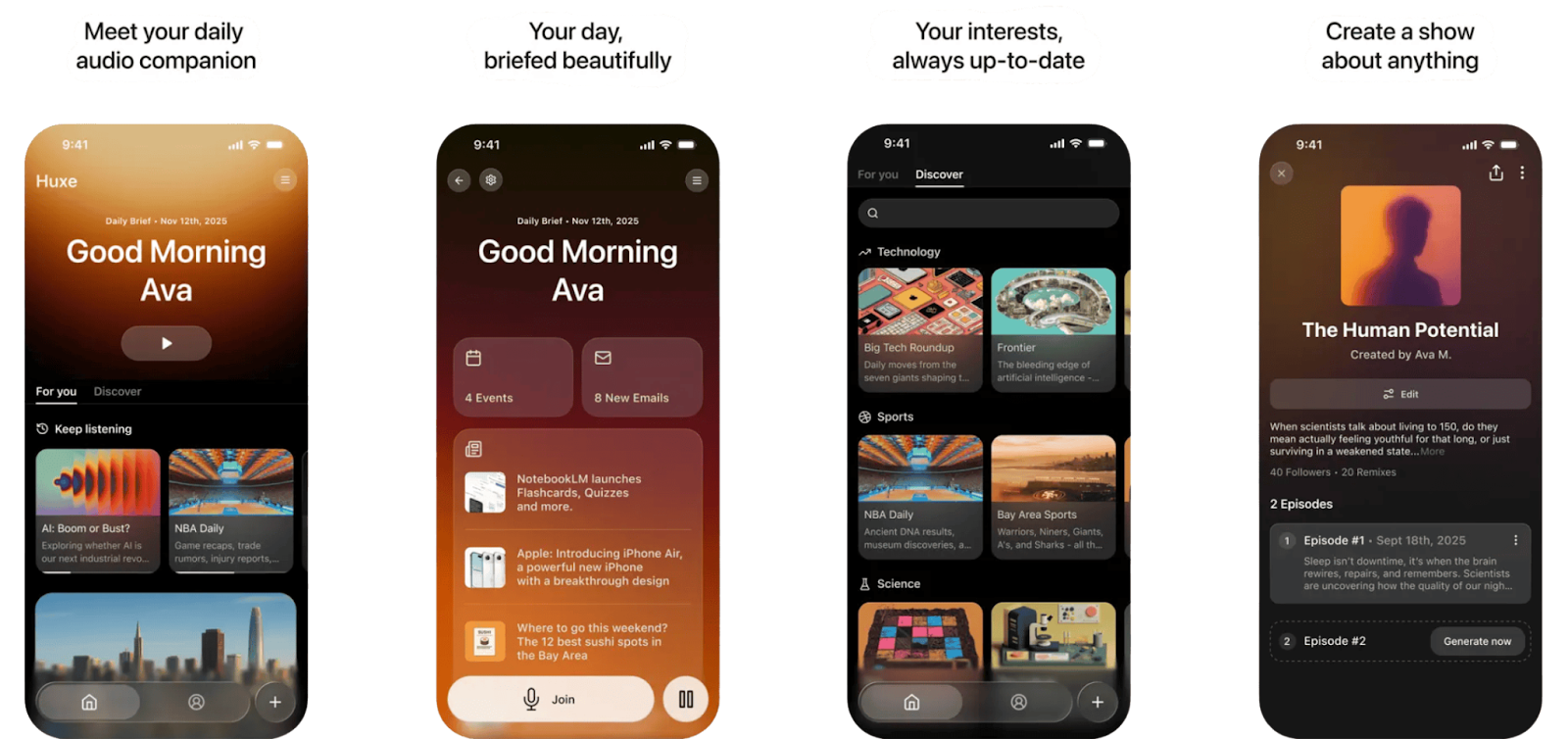 🗞️ Your News, Your Way | I can’t keep up with all the news that interests me. So I’m exploring new ways to get concise, curated updates. Today I’m sharing three new tools I like. * Huxe Personalized audio shows drawn from your interests, calendar, & email* Google CC A morning summary of your email inbox * Yutori Scouts AI agents that monitor your fave topics and deliver reportsRead on for examples of how each works, and how to make the most of them.Huxe — Personalized Audio UpdatesHuxe is a personalized audio app. Whenever I open it I hear a custom podcast it generates on the spot based on my interests, calendar and email. It greets me with what’s important on my calendar and in my inbox. Then the little radio show made for me shares news and feature stories on topics I’m interested in — from AI and tech to teaching and classical music.Huxe was co-founded in September by Raiza Martin, who left Google after leading the vision and development of NotebookLM, my favorite AI tool. To set up the Huxe app I picked from a list of categories and added some keywords for topics, teams and tech that interest me. I also gave it permission to access my Google Calendar and Gmail. (Connecting those accounts is optional). Huxe is free for now, on iOS or Android. Follow Huxe on LinkedIn where they post interesting updates. In addition to a new “for you” audio update generated anytime I open the app, Huxe also has a Discover tab for listening to audio shows curated from online content. Examples of ones I like:* Product Drops highlights notable new tech, referencing posts on Product Hunt, the best hub online for new launches* Actually Useful has mini case studies about when AI is demonstrably helpful* The Tennis Daily gives me interesting updates during the Australian OpenDesign your own briefing* Start by pressing the “+” button at the bottom right of the interface* On the Research tab, type in a prompt like “What are the latest breast cancer research developments?” or “Newest snack trends in Tokyo?”* Alternatively, hit the “Use Sources” tab and add a list of specific sites you like, X handles, RSS feeds, or subreddits.Ideas to try* Create a personalized learning show with your favorite blogs, newsletter writers, or subreddits you follow. You can add an instruction to give the show a particular focus, tone, or style. * Make a guilty pleasure show for stressful days. It can be as niche as you want — it’s just for you. No one has to know what’s in it, though you can choose to share it. Add a list of topics that amuse you, from hobbies to food, pet, or sport trends. Or pick guilty pleasures like favorite TV shows, snacks, or singers.* Example: In 60 seconds I curated my own show called Reddit’s Daily Glow based on a few subreddits with inspiring news and interesting facts.I used to listen only to podcasts or audiobooks on my commute, but now I mix in these personalized audio updates depending on my mood.Customize your briefings* Use the “Join” button while listening to anything to inject a live question into the show. Like the interactive audio feature in NotebookLM, it prompts the AI to respond to your query before returning to the audio briefing.* In the settings tab, choose two voices you prefer from 19 options.Features I hope will be added: I’d like to be able to rewind and jump around more easily in the briefings. Down the road I’d love to pull in podcast, YouTube, and newsletter subscriptions as source material, and get Huxe updates by email or WhatsApp. I’d also love to use Huxe as a curator to create my own shows, mixing in my own voice and content.Alternative: I like Mailbrew for creating curated email digests from my favorite newsletters, blogs, subreddits, YouTubers, and more. Read my guide (for paid Wonder Tools subscribers) for more on why I like it and how I use it. Another alternative for a quick news overview is Upstract. But that’s basically the entire Internet on one page, which I find overwhelming. Sponsored MessageBuild something LovableCreate websites and apps quickly by chatting with AI. Lovable makes it easy to turn your idea into something real. No need to write code. Just describe what you have in mind, then guide Lovable with suggestions to shape it. To avoid doomscrolling, I made a little Uplifting News page that updates from Reddit. I also mocked up a landing page to help educators with AI. Both took a few minutes. Neither required any special expertise. Just an idea. Whether you want a new business page, portfolio, or an app for your team, Lovable is a fast way to begin without hiring anyone or mastering complex tech. Rather than spinning up a slide deck or spending years outlining a plan, try Lovable for turning your idea into a living site or app. Google CC — A Personalized Daily Email UpdateI’m testing a new Google “AI productivity agent.” It’s basically a personalized briefing Gmail now sends me daily. It’s based on new Gmail messages and what’s in my Calendar. Join the waitlist. What’s useful about it* It saves me from missing out. It surfaces messages I might otherwise overlook. Examples so far: a library message about a reserved book ready for pickup, and a volunteering sign-up deadline. * It links directly to key messages. You can click on any briefing item to open the relevant Gmail message. * I can reply to customize future briefings. I replied to a briefing asking for Substack-related email updates I might have missed, and it gave me these useful nuggets.Yutori Scouts — Get Customized Reports Get updates on whatever interests you. Create a detailed query and a team of AI agents will scour the web to keep you up to date. Specify news, shopping, or professional passions, or get updates on particular products, companies, or opportunities. Set your preferred frequency to daily, weekly, or when new info arises. It’s like a more powerful, AI-enhanced version of Google Alerts, which just searches for keywords. Here’s more on how Yutori’s AI agents work. How I’m using it… * To get an inspiring daily story from Reddit. Here’s a recent example. * To see which AI startups are trending on Product Hunt. (You can remix public queries, which serve as useful templates). * To keep up with new AI policies in higher ed. I set up a weekly digest to stay up to date for my job at the City University of NY. Here’s a recent update. And this brief video 📺 shows Yutori’s AI agents quickly researching, editing, and delivering the report.👇More examples of what Scouts can monitor* Niche clothing trends in Tokyo* TikTok U.S. daily trends* Highly-rated new movies available to streamPricing: Free for one active query; $15/month for 10 scouts on various topics with up to hourly monitoring. This is a public episode. If you'd like to discuss this with other subscribers or get access to bonus episodes, visit wondertools.substack.com/subscribe | 8m 28s | ||||||
| 1/17/26 |  Azeem Azhar's Favorite Tools ✨ | Azeem Azhar is the kind of guy who loves both old-fashioned pens and advanced AI. It was a delight talking with him, not just because he’s a successful entrepreneur, author, and interviewer, but because we share quirky tech tastes. Azeem and his team publish Exponential View — a Substack with 140,000+ subscribers — about how tech is shaping our future. In our live conversation, we talked about Azeem’s AI — and analog — workflow. The discussion also touched on 18 sites, apps, and gadgets summarized below.📺 Watch the video for the full chat, or check the highlights and tool list below.🔎 On AI Research Beyond Google and WikipediaAzeem consistently tweaks how he figures out where tech is heading. Check his “Boom or Bubble” dashboard on whether the AI market is overheated for an example of his analysis.Key takeaway: Azeem’s research workflow has moved almost entirely away from traditional search:* Why he quit Google and Wikipedia. [16:20] “I spend virtually no time on Google searching for things, nothing on Wikipedia at all, not a moment now.” Instead, he surfaces what matters to him with AI searches and custom tools his team has developed.* Manus is his research assistant. Azeem and his team use Manus (a Chinese-founded AI startup recently acquired by Meta) the way you’d send a research assistant to “find color—go off and find the case studies, the anecdotes, the famous quotations.” The team runs queries overnight for 30-40 minutes each.* Shortwave helps with investor intel. This AI tool is superb for searching within your email. Azeem has 40 startup investments. To support founders, he uses Shortwave to search past email to help explore questions like, “How well are they sticking to their milestones? Have they changed the goalposts? Where do they seem to have problems where I can be helpful?” Azeem uses Shortwave to search across 15 years of Gmail messages.* Julius is a resource for data science. He uses this tool, which he’s invested in, as an AI number cruncher. [My post on Julius]🤖 How Azeem Uses AIAzeem set up custom instructions directing ChatGPT to aggressively challenge his assumptions: [6:41] “It can be quite exhausting… it’s like being constantly interrogated.” His follow-up? “I often have to copy the answer and put it into Claude and say, explain this to me like I’m a bright high schooler.” He considers Claude the best coding model and also uses it for text refinement. Bottom line: Azeem uses the two AI models sequentially to force himself to think deeper.Other AI Assistants* Gemini Pro Azeem builds interactive apps with Gemini. “I might explain what I’m looking for, have a discussion, then ask it to build the interactive platform app. Then I can play with the parameters.”* Perplexity Azeem’s go-to for “instant answers” when he doesn’t need deep research.* DeepSeek Azeem’s default for “good enough” queries to cut costs. “In general, it’s really good enough. And if on the occasion I don’t think it is, I can fire it out to one of the other models.”* Grok Azeem experiments with this occasionally as part of his testing.✒️ “I Dip the Pen in this Bottle of Ink”Azeem has a fountain pen without an internal ink cartridge. Why? [9:30] “If I am writing and every 10 or 15 words I have to stop to dip the pen in ink, I’m slowing myself down... In a world where I can move really quickly, I will slow myself down. I’ll get very haptic in the experience and look at what I’m writing and force myself to cross out mistakes, and feel frustrated about mistakes, so therefore slow my thinking down even more.” In a conversation about AI acceleration, Azeem deliberately builds in friction. 🎙️Voice and Writing Tools 🖊️ * Wispr Flow Azeem reads his handwritten notes aloud into Wispr Flow, editing in real-time as he speaks.* Kolo Tino Fountain Pen Azeem likes the feel of pen on paper and its deliberate pace.* Paper Republic Trifold Leather Journal Azeem’s folio holds three separate notebook inserts: “You can have one that’s just for your jotting of your to-do list and then others are for thinking time.”😰 Azeem: “Are You a Bit Stressed, Jeremy?” 😖In our recent conversation, Azeem teased me for repeatedly referencing resources for relaxation. “Are you a bit stressed? Because you’ve talked to me about your squeeze ball. You’ve talked to me about Headspace for meditating. You’ve talked to me about your CMY cube to chill you out. I don’t want to go all shrink on you, but there’s a little hint of intensity there.”Fair point. I do have a lot of calming tchotchkes on my desk. We both shared a bunch of tools we use, analog and digital, for coping with busy-ness and overwhelm. Below are three Azeem recommends: Focus & Wellness* Pzizz Azeem’s most-used app: “[The app’s] run time is probably 10 hours a week on average and has done for a decade.” He paid $50 for a lifetime subscription and uses it for naps, overnight flights, and jet lag recovery.* Oura ring Azeem uses this for health tracking, as have I, since I first wrote about it in 2021. * Lacrosse ball Azeem’s essential travel item: “A really hard lacrosse ball to put into your pressure points, like your glutes and your hip flexors, because you want to do that massage, especially once you’ve been on your second 10-hour flight in five days.”🎧 High-End Audio: Headphones and DJ Mixing Azeem tests headphones with “Sultans of Swing,” a song by Dire Straits, Bach’s Goldberg Variations, as well as dance tracks. * Solitaire T Headphones Azeem travels with these for high-end sound with noise cancelling for long flights.* Beats Fit Pro His everyday choice.* DJ Studio Azeem uses this digital audio workstation to create DJ mixes while traveling.🌟 Notable Quotes * Azeem on the skyrocketing cost of cutting-edge AI: “All of this is expensive. I mean, we spend as a team, I would say probably between $350 and $500 per person per month.”* My take: we’re nearing a new digital divide. Free alternatives like Jan AI help (see my post), but if you use the best contemporary AI models, your bills add up fast.* Azeem on why no single AI company will “win” the market. "I haven't seen a strong reason to think that a network effect will emerge.” * His rationale: “If you get the unique data for clown makeup, and I get the unique data for vineyards in Italy, if I'm not interested in clowns, I'm not going to use your LLM.”* Azeem says OpenAI’s strategic dilemma, as reported by The Information, is whether to focus on power users or those who just want quick replies. * [29:23] “They have 1,000 researchers who have built amazing deep research tools, and most people just want to know which movie should I watch tonight, or draw my dad as if he was Spider-Man for his 70th birthday card.”* On accountability in the AI era: “We’ve essentially said to the team that we don’t have hallucinations at Exponential View because everything is owned by a person. If you copy and paste something out of an LLM that’s got a hallucination in it, that’s you saying it, that’s not the LLM saying it.”* On the swift pace of change: “I would think that 70% to 80% of my workflows today, the things that I do, are different to how I did them three months ago.”Thank you to Romaric Jannel, Abbey Algiers, Aysu Kececi, Ondrej Prostrednik, blaine wishart, and many others for tuning into the live video conversation with Azeem Azhar. You’re Invited! Join me next Wednesday, January 21 at 10am EST for Just Start Writing: Tools For Busy Creators In 2026, a free workshop I’m leading for Medium.com. This is a public episode. If you'd like to discuss this with other subscribers or get access to bonus episodes, visit wondertools.substack.com/subscribe | 1h 06m 47s | ||||||
| 12/20/25 | 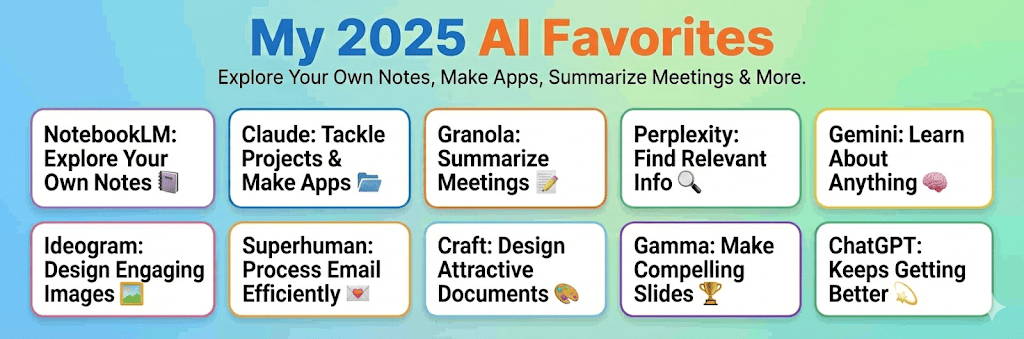 10 AI Tools I Actually Use ✨ | I’ve relied on these 10 tools this year to act as a team of AI assistants. They’ve helped me approach work with a spirit of experimentation and exploration. To read the full post online with all the links and details, visit https://wondertools.substack.com/p/my-2025-ai-favorites This is a public episode. If you'd like to discuss this with other subscribers or get access to bonus episodes, visit wondertools.substack.com/subscribe | 4m 31s | ||||||
| 12/14/25 |  Ideogram, Explained 🪄 | I rely on Ideogram, an AI image generator, to help me create posters, banners, social posts, newsletter illustrations, and video thumbnails. Context: Ideogram competes in an exploding market. Gemini’s new Nano Banana Pro makes remarkable infographics, ChatGPT’s image generator produces fantastic illustrations, and Canva, Adobe, and Midjourney keep getting stronger. Yet I still find myself returning often to Ideogram. Read on for 10 reasons why — and a guide to getting started. 10 reasons I like Ideogram * Your prompt gets automatically improved. Ideogram’s magic prompt algorithm refines your initial query. You can then approve it or revise. * Choose from four options. Each time you submit a prompt, you get back four generated images. Getting to choose one gives you a bit of editorial input.* Public image galleries are helpful for inspiration. Build on others’ prompts. Browse images of all shapes & styles, and top-ranked images, for ideas. * Get accurate text within images. Ideogram generates accurate text for social media graphics, thumbnails, banners, and logos. Ideogram’s guidance on text & typography includes excellent examples of prompts and text designs.* Pick from a variety of styles. Choose from dozens of styles, from Pop Art and Watercolor to Doodle, Travel Poster, and Surreal Collage. I often choose “auto” because I can’t make up my mind. I tend to opt for a clean, modern look for a presentation image, or a more abstract, artsy vibe for creative projects.* Use negative prompts. Paid subscribers can list specific elements NOT to be included in an image. That can be helpful if a particular detail could prevent your image from being usable, as in the burger example below. * Choose your image orientation. You can generate horizontal, vertical, or square images. Free users have 11 orientation options. That’s helpful for generating images that will fit your slide, podcast, newsletter, ad banner, site header, or whatever else. Paid subscribers get additional dimension choices.* Remix anything. Modify images you or others have generated with Ideogram’s remix button. I often tweak what I’ve generated to get closer to what I want. Be specific with your remix query: “dog” may yield a golden retriever instead of the poodle you envisioned.* Extend images. Ideogram’s Canvas feature lets paid users edit, extend, or combine images. Here’s a 45-second video with examples. * Create custom styles of your own Upload or pick a few images to generate a new style you can use repeatedly for a consistent look. 📺 Watch the promo video below to get a sense of it.👇 How to start using Ideogram* Visit Ideogram.ai and sign up for free with your Google, Apple or Microsoft account. * Check the welcome guide for starting tips, examples, and sample prompts.* Explore the public gallery to see others’ images and the prompts they used. * Describe an image you envision in a few sentences. Don’t worry about precise wording. You can opt to let Ideogram refine your prompt.* Choose a style. Decide if you want an illustrated or photographic-style image. Or pick ‘auto’ to let the algorithm decide. You can also select a color palette. * Choose dimensions. Pick a wide, vertical or square image. I mostly generate wide images, which match the width of presentations or web pages.* Click generate. On a free account, you can generate a limited number of images per day. * Wait a minute. The service slows free requests to incentivize upgrades. * Download the image you like and use it any way you choose. Use an AI assistant to sharpen your image promptsAvoid getting generic images when using Ideogram by prompting ChatGPT, Claude, or Gemini to help you craft more detailed image prompts. Here’s how to prompt an AI assistant for this: * Type a few descriptive phrases about an image you’re envisioning* Explain how you plan to use the image (for a poster a thumbnail, etc)* Ask for five surprising, bold, image prompts based on your context for use with your image generation tool. * Iterate. Pick one you like and ask for three compelling variants. Test one or more of those with Ideogram. Pricing* Free for a limited number of image generation credits each day. Depending on traffic to Ideogram, you can expect at least five free images a day. I started on the free plan but now pay for the service * $7/month billed annually for more images, quicker rendering, and advanced features like Canvas, which lets you modify & extend images. Ideogram caveats* Limited free images. I often have to iterate on a prompt several times before getting something usable. On a free plan that may mean getting only one or two quality images a day.* Reduced image quality on downloads. Free users can only download a 70% quality JPEG image, not the full-resolution version. * Public image creation only. All images created on the free plan are public, meaning others can view and remix them. AlternativesGemini Nano Banana ProGoogle recently launched its best image generator with a surprising name and remarkable versatility. You can use Nano Banana Pro for nearly any kind of visual — from a logo, infographic, or slide design, to an edited self-portrait based on your photo or an abstract image of a dog (below). ChatGPT’s Image GeneratorChatGPT’s built-in AI image generation tool is excellent, particularly for generating cartoons, simple diagrams, or abstract illustrations. You can’t specify the dimensions of an image, but you can use an extended chat to provide context and guidance, and you can ask the AI assistant to iterate on the image result if it doesn’t satisfy you with its first attempts. You can also select an area of a generated image and prompt it to change that part. Here’s my post about it. FluxBlack Forest Labs, which makes the Flux 2 AI image generator, recently raised $300 million from investors. Flux images are dramatic and distinct. You can create 50 images for free after signing into the Flux Playground, or you can use the model on Hugging Face. Flux doesn’t require any special prompting lingo. I find Ideogram simpler to use, and it has a broader set of features, but Flux is excellent at generating accurate text inside images, and it’s a powerful tool on the rise. Here are Flux versions of the Ideogram image I created at the top of this post. Adobe FireflyAdobe has a growing suite of AI tools that keep getting better. Firefly has some unique capabilities. You can customize your image’s camera angle, lighting, color, tone and special effects, among other advanced features. Adobe has also committed to respecting creators by not training on their content without express permission. “Adobe Firefly models are trained on a dataset of licensed content, such as Adobe Stock, and public domain content where copyright has expired.”Concerns about AI image generation* Less control. With editing tools like Photoshop, Illustrator, Figma, and Canva, you have full control over the pixels you’re designing. When you generate images with AI, you have less say over a visual’s specifics. * Risk of confusion. Some AI-generated images look like real people, objects, or buildings, which can be misleading if not explained. An AI-generated photo of a person in an office might be assumed to be a real employee.* Displacement of artists. Talented professionals may see diminishing demand for their services as people increasingly look to AI services instead of hiring creatives. And lawsuits allege that AI models were unfairly trained on human work. Getty recently lost one such suit, but others are ongoing. * The rise of AI sludge. With AI image generation spreading, it’s easier than ever to mass produce visual images without thought. It is also easier to imitate anyone’s visual style, so AI-powered copycats may proliferate. * Error prone. Some AI generation tools still can’t reliably reproduce text well. Words within images may be garbled, like this mangled poster made by DALL-E in 2024. Resources for non-AI images* Creative Commons & Openverse — search for free human-made images * The National Gallery of Art lets you download and use its images for free* Unsplash and Pexels are free sources for photographs* 11 tools for diversifying your images (a Wonder Tools guide)What have you used AI images for? What works best for you? 👇 This is a public episode. If you'd like to discuss this with other subscribers or get access to bonus episodes, visit wondertools.substack.com/subscribe | 9m 56s | ||||||
| 12/6/25 | 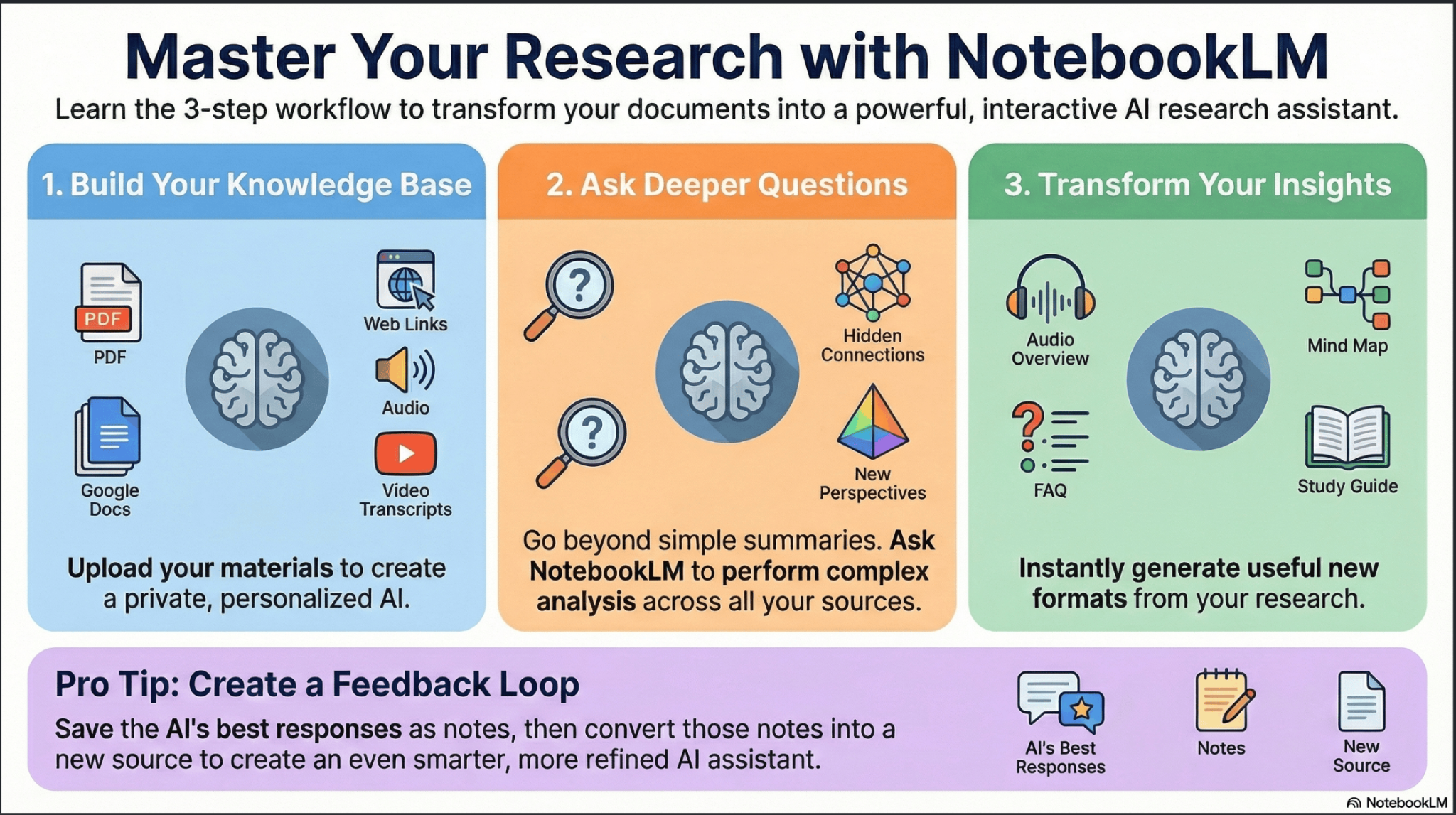 NotebookLM: The Complete Guide 📍 | NotebookLM is the most useful free AI tool of 2025. It has twin superpowers. You can use it to find, analyze, and search through a collection of documents, notes, links, or files. You can then use NotebookLM to visualize your material as a slide deck, infographic, report — even an audio or video summary.How to set up a notebook* Pick a purpose. Start a new notebook for a work project or a learning goal. Examples: I created a notebook to organize materials for the new online bilingual MA program we’re developing at the CUNY Newmark Grad School of Journalism where I work. I also set up a notebook to learn more about Gustav Mahler, a composer I revere. I have numerous others for work and personal projects. * Find sources for your notebook. NotebookLM recently added a search panel to help you discover high-quality sources. You decide which, if any, of the suggested materials to add to your notebook. The “Fast Research” is quick and focused, unlike a generic Google search that returns hundreds of results, some of which have gamed the search engine system. * Fast Research surfaces 10 or so documents related to your topic in less than 30 seconds. You can ask it to find sources within your Google Drive, or from the Web. * The Deep Research prompt option in the same panel will more slowly gather many more sources. Tip: make your query as specific as possible to surface relevant, useful sources. Here’s an example of a concise, precise query I used. * Add your own materials. Upload files up to 200 MB and 500,000 words into your notebook. You can add:* Google Docs, Slides, and Sheets* PDFs, images (including photos of your handwritten notes), and Microsoft Word documents* YouTube links and audio, image, or video files (it extracts the transcript)* Website URLs (it extracts the text)No other AI tool I’ve used lets you compile as many different kinds of materials in a centralized AI workspace that’s easy to explore and build with.* Free accounts can create up to 100 notebooks, with 50 sources in each. On a free plan, you may run into limits when creating multimedia materials. You can run free 10 Deep Research queries a month. Students in the U.S. 18 or older can get pro access for free. * Pro accounts, which cost $20/month as part of Google AI Pro, can host 500 notebooks with 300 sources in each. They can run 20 Deep Research queries a day. Collaborate and shareNotebookLM now lets you collaborate as you would with Google Docs. You can choose to invite people as viewers or editors. Give them a full view of your sources and notes, or limit their access to the search/chat interface.You can also publish notebooks publicly. Here are some examples:* Trends in health, wealth and happiness by Our World in Data* How to build a life, from The Atlantic* Shakespeare’s Complete Plays* Parenting Advice for the Digital Age, by Jacqueline Nesi, PhD of Techno Sapiens* Earnings Reports for the World’s 50 Biggest Companies* Secrets of the Super Agers by Eric TopolExplore your materialsAs you add materials, NotebookLM analyzes them and suggests relevant questions. After I uploaded biographical material about Mahler, it suggested search queries — based on the source documents — about why he converted to Catholicism and what poetry collections inspired him. You can also ask any question on your mind or type in any kind of traditional search query.NotebookLM uses natural language processing to make sense of your documents. When you type in a query, the system understands what you’re looking for. When I queried about the death of Mahler’s loved ones, I didn’t have to mention their names or even their relationship to him — NotebookLM understood what I was asking. These exploratory searches are more powerful than old-fashioned keyword searches, which only work if an exact word combination appears in your document. NotebookLM makes it easy to run abstract queries as well, searching for moments of anger or surprise.Tip: target specific sources. You can use the checkboxes next to each source to limit your search to particular documents. This precision is handy when you want to search within a specific report or compare information across just two or three key documents.Visualize informationUse the Studio tab to create shareable reports, slides, graphics, and multimedia out of your notebook material. Unlike other AI tools, NotebookLM’s creations are grounded in your source documents — they don’t pull from the Web or generic training data. Because they draw only from your source material, the creations will change as you add more to your notebook, or if you mark only a subset of sources to be used.Create a mind map first to get an overview of the topics covered in a notebook. Then create the following elements to understand and share your material.InfographicsCreate polished visual summaries. Choose whether you want a landscape, portrait, or square image, and how simple or detailed it should be. Then type in an optional custom prompt to guide the design. You can include instructions about your preferred color palette, target audience, illustration style, and the kinds of numbers or facts to prioritize.A caveat: NotebookLM consistently produces clean, readable text. It’s mostly accurate, but I’ve encountered occasional errors. Here’s an example: Mahler’s age of death is wrong at the bottom of this NotebookLM infographic. Slide decksNotebookLM’s newest capability — generating slide decks — continues to surprise me. When I ask it to make slides summing up notebook material — it comes up with outstanding results, like this slide deck about Mahler. You can choose between detailed standalone slides, or simpler TED-style presenter slides meant to accompany a verbal presentation. As with the infographic tool, you can just press the slide deck button to let NotebookLM decide what to generate. But you’ll get something more relevant to you if you write a prompt to guide the visual style and subject matter focus. The slides include a small NotebookLM watermark in the bottom right corner.Below is an example of a slide deck about NotebookLM I created with NotebookLM. 👇A caveat: In my testing, the slides have been clean and visually engaging. They’re not perfect, though. A deck about our new bilingual journalism program, for example, included misleading AI-generated images of our faculty members. Video overviewsCreate a video summary of the material in your notebook. Think of it as an AI-narrated slide show. Fortunately, there’s no talking avatar. I like how these videos include facts, examples, quotes, and images pulled directly from your source documents. Choose between a brief video (1-2 minutes) or a longer explainer (often six to 10 minutes). You can’t specify the exact length. Tailor the approach to your viewers with a prompt. You can even specify a specific audience, whether board members of a charity you’re presenting to, or grandchildren new to your subject matter. Videos can take five to 10 minutes to generate. Free accounts can generate only a few videos, slide decks, or infographics per notebook before hitting a usage limit. When your video — or other creation — is ready, you can download and share it, or view it within your notebook. 📺 Here’s a video overview of NotebookLM I created with NotebookLMPodcastsNotebookLM’s audio overviews became Internet famous for their remarkably human-sounding conversations. When I played a clip for a group of students when this feature launched, they didn’t realize the speakers weren’t human. Example: Here’s a new “Deep Dive” audio piece I generated about NotebookLM for this post. * You can write a brief or detailed prompt to guide the style of the audio, and you can choose from multiple formats.* After a few minutes, the audio file is ready for you to download and share. * Tip: add an AI-generated label to this kind of audio or any other material you create with NotebookLM. That way people will know where it came from and won’t assume you created each detail from scratch. You can generate audio pieces from a subset of your documents or your full collection of sources. Here are the four kinds of audio you can generate, with an example of each:* Debate. Here’s an audio debate I prompted NotebookLM to create about which of its features are most useful.* Critique. Here’s a critique of NotebookLM I generated from 19 sources I added.* Brief summary. Here’s a 90-second audio overview. * Deep dive. Here’s a deep dive NotebookLM explainer. Text reportsIn addition to multimedia, you can generate custom reports. The reports tend to be around 2,000 to 3,000 words, or six to 12 pages. Here are example reports generated by NotebookLM: an advanced guide to NotebookLM and a guide to integrating NotebookLM in a newsroom. I’ve found the dozens of reports I’ve generated to be thorough enough to be useful for reference or learning. They also help point to sources worth exploring further. Try prompting NotebookLM to create the following kinds of reports:* Timelines: Organize chronological information * FAQs: Common questions and answers about your topic * Explainers: Break down complex concepts * Teaching guides: Useful if you’re an educator or lead workshops * Student handbooks: Supplemental resources * Critiques: Analysis of weaknesses or limitations in your sources * Debate reports: Multiple perspectives on controversial topicsFlashcards and quizzesWhen learning something new, create flashcards or quizzes with multiple-choice questions to test yourself. * Describe your level of understanding (e.g. “I’m new to this,” or “I’m a professional in this field, but I’m new to this framework,”).* Choose whether you want small or large number of questions or flashcards. * Specify concepts you want the quiz or flashcards to focus on. * You can also ask NotebookLM to focus on a particular source, like a certain link, PDF, or video you’ve uploaded. Example: Check out my NotebookLM flashcards. 5 Projects to Try1. Organize a work projectEach time you add a file, NotebookLM summarizes it. Its full text is then searchable with citations, so you know you’re not getting AI hallucinations. To assemble a useful notebook, gather relevant documents, including: * Plans, internal reports, or project memos* Links to relevant sites* Meeting recordings or transcripts * Important emails copied and pasted or saved as PDFs or docs * Background reports, company manuals, or competitive research Use your project notebook to: * Create summary reports or timelines to onboard new team members * Draft slide decks for internal meetings* Make infographics to visually summarize complex processes or workflows* Quickly find relevant quotes, stats, anecdotes, or examples* Refresh your memory when returning to the project later on2. Plan a tripI create travel notebooks to help me find relevant family activities and ideas for outings. I’ve done this before with Perplexity and other AI platforms, but I like the way NotebookLM lets me gather so many different kinds of inputs: links, videos, articles, and local guides—everything I might want to reference when planning weekend activities or hosting visitors. You can find these kinds of resources with a Google or Perplexity search, or do the whole process within NotebookLM. For travel planning, compile these materials: * Historical and cultural information * Entertainment guides and reviews * Restaurant recommendations * Local blog posts, event listings, or links to top attractionsThen ask NotebookLM to generate:* Itineraries* FAQs about your destination * Recommendations based on your budget or other constraints * Slide decks or infographics to share with your travel companions * Flashcards for learning key phrases if you’re traveling abroad * Quiz games to play at the airport while waiting in line3. Learn somethingHere’s a meta use-case: I created a notebook about NotebookLM to help me learn about its nooks and crannies. (Try the quiz about NotebookLM it created for me.) I made another one about “deliberative dialogue” to learn more about tactics for encouraging civil discourse between people who violently disagree. To build a learning notebook:* Upload relevant YouTube videos, articles, and course materials. * Use the “Add Sources” panel to add docs from your Google Drive or the Web. * Generate mind maps, quizzes, and flashcards to test your understanding.* Create audio guides to learn while exercising, cleaning, or commuting.* Prompt for timelines, FAQs, explainers, infographics, and slide decks tailored to your knowledge level and learning goals.Tip: break large documents into smaller piecesNotebookLM uses retrieval augmented generation (RAG) for search. That keeps it grounded in your material and avoids hallucination. But it also means that when asked to quickly search gigantic documents, NotebookLM may have the capacity to scour only a subset of your source material. To avoid searches that miss important material, consider breaking enormous documents into smaller pieces and narrowing your searches to specific sources or more precise subjects.4. Compile reference guides Build notebooks to help you handle recurring tasks. * Grant writing. Compile successful applications, guidelines, or evaluation criteria.* Social posts. Gather style guides, brand guidelines, and examples of past posts that have worked well for you or competitors. * Technical documentation. Assemble specs, organizational rules, or industry best practices.* Customer research. Add past surveys, interview transcripts, analytics reports, or testimonials. Tip: as a first step, strip names and emails from surveys or interviews to protect respondents’ privacy. 5. Manage home projectsCreate notebooks for life outside of work. NotebookLM is great for this because unlike other AI tools, it lets you input so many different kinds of sources with huge file sizes, whether you have videos, audio files, PDFs, your own handwritten notes, links to various sites, or Google Drive files. * Recipe collections and guides to various cooking techniques* Home improvement projects with how-to articles and product reviews* Hobby research for woodworking, guitar, photography, or gardeningWhy NotebookLM Stands Out 📍* Unlike AI assistants designed around an open-ended chat box, NotebookLM is structured around a more familiar paradigm: a searchable notebook. The closest parallels are Claude Projects or ChatGPT Projects, which allow you to organize documents in a folder that can inform AI queries on those services. Perplexity Spaces is also useful for organizing related search threads. But none of those can generate NotebookLM’s full range of outputs, and each draws on its own training data as well as your sources.* NotebookLM’s citation system means you can trust its search results, because you can see the cited section in your original document. And it’s unique in being able to generate everything from audio and video to reports, slides and infographics from your source materials. * Note: Citations aren’t provided within infographics, slide decks, video or audio overviews. If there are tidbits from those you want to trace back to a source, summarize the fact or detail in question in NotebookLM’s explore tab — the chat window — to ask for a citation.* The free tier is powerful enough for most people. And it keeps improving, adding significant new capabilities every couple of months. * The bottom line: if I were forced to recommend a single AI tool for many different kinds of readers, I’d pick NotebookLM. What do you use NotebookLM for? Add a comment 👇Read more from Wonder Tools about NotebookLM 👇 This is a public episode. If you'd like to discuss this with other subscribers or get access to bonus episodes, visit wondertools.substack.com/subscribe | 12m 27s | ||||||
| 11/21/25 |  5 Surprising Ways to Use AI 😳 | I like pushing AI to be less predictable. When AI assistants are less bland and more bold, they challenge my blind spots and nudge me to rethink. So I asked one of the boldest AI experimenters I know, Alexandra Samuel, to share unconventional tips and tactics when she visited New York recently from Vancouver.Alex, who writes about AI for the Wall Street Journal and the Harvard Business Review, surprised me with the scale of her AI efforts. She described creating 200+ automation scripts and building a personal idea database that helps with drafting pitch emails. Her quirkiest tactic? Using Suno to generate songs to explain complex concepts.Her lively new podcast, Me and Viv, explores her unusual relationship with an AI assistant she trained to serve as her coach and collaborator. She interviews AI skeptics like Oliver Burkeman and Karen Hao to challenge her own embrace of AI. The Suno songs Alex generated serve as a recurring musical thread throughout the series.In a recent episode, “I’m So Sycophantic,” Alex confronts Viv’s most irritating flaw: her pathological tendency to flatter Alex and agree with everything she says.The show’s intriguing premise reminded me of another podcast I love, Evan Ratliff’s Shell Game, whose second season debuted recently. Both are excellent explorations of what it’s like to engage deeply with AI assistants, resourceful and flawed as they are.Five tips from Alex1. Use Suno to turn words into catchy musicWhat Suno is: An AI music generation platform for creating custom songsAlex uses Suno extensively to create songs for her podcast about AI, treating it as a storytelling tool rather than just music creation.“I’m like a monkey with a slot machine. It’s pretty typical for me to generate the same song 50 or 100 times, maybe even 200 times,” she says.The iterative process helps her find the perfect version. She says Suno struggles with switching between male and female voices, musical styles, or languages mid-song. Alex suggests bringing your own lyrics to Suno for better results than relying on its built-in lyric generation. Here’s documentation she wrote up about how she uses Suno. An alternative she recommends: work iteratively with an AI assistant like Claude to develop lyrics that you then import into Suno.Try it for: Turning articles or announcements into short promo songs; creating engaging musical explainers; or generating a newsletter signup song.Alternatives: Udio, ElevenLabs MusicSponsored MessageYour data knows what it wants to beData doesn’t have to be dull. With Flourish, you go from spreadsheet to show-stopping visuals in seconds. Upload your data, get instant chart suggestions, and drop them right into your Canva design. It’s fast, easy, and looks amazing!2. Coda: Create your own productivity hubWhat Coda is: Software tool for creating customized documents and databases. I’ve written about how underrated Coda is as an alternative to other useful tools like Notion and Airtable.Alex calls Coda an everything hub where you can build your own tools. New AI features make it easier to use and more flexible. Alex used Coda to design her own “pitch machine,” a sophisticated story tracking system.She has one table in the pitch machine with all of her story ideas. Another table in Coda has all the publications she writes for, with editors’ names and contact info. With the press of a button in Coda, she can combine multiple story pitches into a single Gmail draft while automatically updating tracking fields and follow-up dates. It took a while to set up, but now saves her time. Who is Coda for? Alex recommends Coda for power users who like messing around with tech. She offers this test: “If you use XLOOKUP in Excel, then you should use Coda. If you don’t know XLOOKUP, you should use Notion. It’s like a nerd-o-meter.”Try it for: Project and campaign idea tracking, managing a client database, or automated email or Slack message generation.Alternatives: Notion, Airtable, Google Workspace, Obsidian3. CapCut: Create social videos with AI help What it is: Video editing platform with AI featuresAlex uses CapCut, along with custom Python scripts, to create music videos for Instagram, YouTube, and TikTok. She says she has mixed feelings about CapCut because of its TikTok/ByteDance ownership, but relies on it for now. She’s been working on a system for syncing the appearance of captions on screen to the moment when song lyrics are heard.Try it for: Creating stylish, captioned social media videos or turning podcasts into videos.Alternatives: Captions, Descript, or Kapwing4. Claude + MCP: connect AI to your docsWhat it is: AI assistant connected to external databases and tools via Model Context Protocol (MCP)MCP servers let you connect sites and apps to AI platforms. That’s how Alex connected her Coda account to Claude. Now that they’re linked, Alex can pose casual questions to Claude, which can then look for things in her Coda docs.“I can actually just have a conversation with Claude and say, ‘Hey Claude, I just talked to an editor. They’re looking for articles about data privacy. Can you look at my Coda doc and see what story ideas I have that might be relevant?’”She emphasizes security considerations: journalists covering sensitive subjects should avoid this type of experimental workflow if they’re protecting anonymous source information.Try it for: Querying complex databases, finding relevant past work for new projects, analyzing patterns across your own documents, combining multiple data sources for insightsAlternatives: The Google Drive connector in Claude or ChatGPT; or a custom setup of NotebookLM.5. Claude Code: reduce repetitive workWhat it is: AI-powered coding assistant that runs locally on your computer. It helps developers code faster. It also helps non-programmers accomplish technical tasks using natural language prompts. You can use it to organize files on your laptop, create Python scripts, or make little interactive applications or games.Despite limited formal programming training, Alex has written approximately 200 Python scripts using Claude Code.She says, “Whenever you hear yourself with the deep sigh of, like, this is gonna be a drag, just go to the AI and say, hey, here’s this thing I have to do. Is there a way that could be made into a script?”Alex’s scripts have helped her combine PDFs and generate time-coded captions for video. She also used Claude Code to build her own Firefox extension for a financial tracking app.Try it for: Batch file processing, converting data, or whipping up browser extensions to solve specific-to-you problems.Alternatives: Replit, Cursor, Claude Artifacts, Windsurfp.s. CUNY’s Newmark Graduate School of Journalism is launching the first fully-online bilingual (Spanish/English) M.A program. Learn more and apply by December 5! This is a public episode. If you'd like to discuss this with other subscribers or get access to bonus episodes, visit wondertools.substack.com/subscribe | 13m 41s | ||||||
| 11/7/25 | 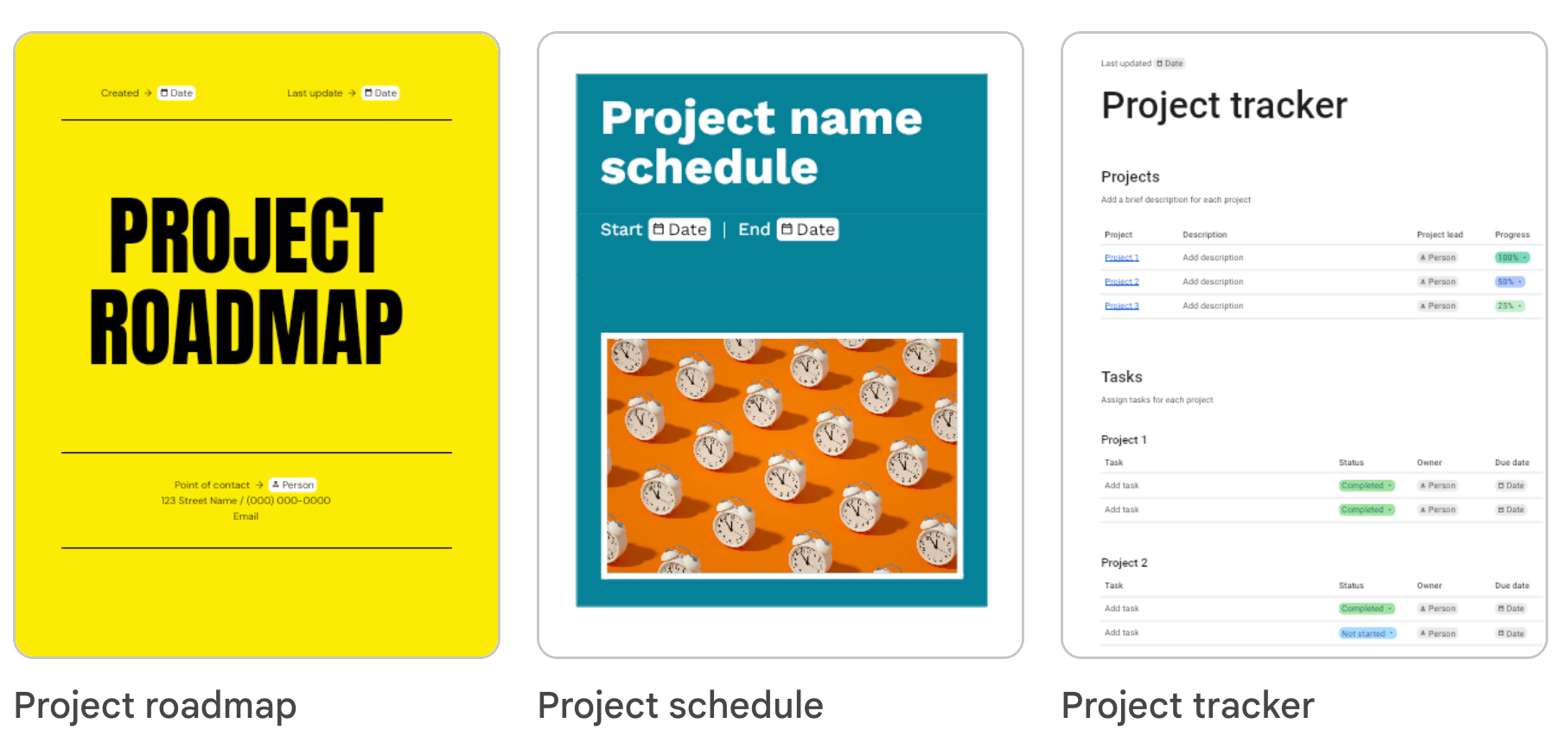 🌟 Google Docs Gets Smarter | Google Docs has new tricks to try: an audio button to hear your writing read aloud; an optional AI helper to summarize your doc; an activity dashboard to see who is viewing your work; and colorful templates to add visual spice. A billion people use GDocs, making it the most popular free writing tool in the world. It remains reliable, free and easy to use. Read on for an update on what’s new and notable. 5 notable new Gdocs features1. Get AI help compiling a new doc 🧑💻 “Help me create” is a new command for building a doc out of existing ones. * Select File > New > Help Me Create and type in a prompt. * How to use it: Mention existing docs with the “@” sign and describe the new doc you’d like to create out of existing ones. I used this to generate an action list out of a feedback summary document. * Caveat: Requires an eligible AI plan or Google Workspace.2. Listen to your writing 🎧Have an AI voice read back your writing. * Select Insert > Audio Buttons. Choose from seven upbeat voices. * When to use this: I like listening for awkward phrases or clunky transitions when editing my work. * Requires an eligible Google Workspace plan or individual AI subscription.Sponsored MessageTap. Hover. Discover. With Flourish, data becomes an experience. Add motion, layers, and interaction that invite your audience to explore, not just observe. It’s the difference between showing information and making it come to life.Try Flourish →3. See document activity 📊A new dashboard lets you see who else in your org has viewed a doc and when. * Select Tools > Activity Dashboard * Tip: Adjust your privacy settings within the activity dashboard if you don’t want your doc views to be showed to others. * See when a doc has been shared and with whom, alongside a a chart illustrating when comments have been added. * Caveat: Requires Google Workspace; not available in solo free accounts. 4. Insert new “building blocks” into docs 🧱Include an AI summary of your document, a decision log or other templated, editable text blocks. * Select Insert > Building Blocks and pick from a lengthy list of options. * Tip: Use the email block to draft a Gmail message within your doc — or ask AI for help starting it, based on what’s in your doc. Then send it to Gmail as a draft you can revise. 5. Try new templates 🎨Google has added 40 new designs to the 55 already in the template gallery. * Select File > New > From a Template to see the additions. * What’s good: The new project roadmap and onboarding templates are nice. The existing resume, letter, and proposal templates are also well-designed.5 of the most useful GDocs features1. Tabs let you create sections within a doc One doc instead of many. Don’t create 20 separate files for each project. Use a central doc instead with multiple tabs for organization. Share everything in one place.Try using tabs for… * A long project. When you’re writing something with multiple sections, create tabs to organize your work. Stat: docs can include up to a million characters.* Collaboration. Each person can take their own tab. No more typing over others’ words. * A class or meeting. When teaching or leading a meeting, create a single doc with instructions and questions. Duplicate the tab for each participant, or create distinct tabs for each topic. Rename the tabs. Now everyone’s input lives in an organized, collective doc.Tips for tabs* 🎍 Emoji-enhanced titles. Decorate the title of any tab with an emoji to separate sections visually. * 🔗 Share deep links. Within the three-dot menu next to a tab’s title, choose the “Copy a link” option to share a link to a specific tab. That makes it easy to return directly to an important spot.* ↗️ Reorder tabs. Drag tabs up or down to reorder them. Drag one into another to make it into a subtab.. * 📋 Outline view. Use the “Show Outline” option in the three-dot menu next to a tab’s title to navigate through subsections. Limitations* No printing or downloading all tabs. Annoyingly, you can’t print or download everything in the the various sections at once. Solution: Go to Google Drive to download the full document, including all its tabs. Or print one tab at a time.* No granular privacy. You can’t set privacy levels distinctly for each tab. If the doc is public, each tab is public too. If the doc is private, you can’t let people see one particular tab.Design docs for the webPageless format. Many of the docs we create never need to be printed. So GDocs now offers a design option for docs you’ll only use on screen. It lets you include wider images and eliminates artificial page breaks. See a gif of Pageless view. How the pageless format is useful * Cover image. Add a photo, drawing or illustration at the top of a document as a visual header. * Collapsable sections. Click the triangle next to a section header to hide the text within it. That’s helpful for giving others a streamlined view of a doc.* Auto-adjusting images. Images and line breaks adjust to your screen size.* Better table view. Wide data tables are easier to navigate. On printable GDocs, tables sometimes get cut off. * Adjustable text width. You can adjust the text width (View > Text width) in a pageless doc. That’s helpful if you prefer broader margins or you’re on a particularly wide or narrow screen.Tips * Switch modes. You can toggle between pages or pageless mode by going to File > Page Setup. * Set a default. If you always prefer one or the other, mark it as your default in the Page Setup same menu. * Change background color. If you want a white text on a dark color background like this, just change the background color as I did in this gif. * Get help. See Google’s help page for more info. Limitations* Missing features. Page numbers, headers, footers, watermarks, and columns won’t show up in pageless format.* Hidden cover images. It can be confusing to encounter different capabilities in each mode. Having your cover image hidden when you switch into Pages mode is odd.What else is new in Google Docs ✨* Proofreading. Check for spelling, grammar, conciseness, and passive voice. Requires AI functions to be turned on. See it in action on a prior draft of this post. * Markdown. This lets you quickly format text using simple symbols, like *ital* to turn something into italics or **bold** to make something bold. Enable it under Tools > Preferences. * Smart Chips. These special snippets of text allow you to paste in a live link to docs, sheets, or slides to show a preview of that material. Or type “@” and the name of a person, place, or calendar event to insert a preview that pops up when someone scrolls over the item. See Google’s help explanation.* AI Editing. Test out GDocs’ AI for summarization or editing suggestions. Bonus posts for paid subscribers 👇 Good alternatives to Google Docs* Coda is underrated. Create interactive docs and link them to your calendar, CRM, email, or other services like Slack. Note: Coda was recently acquired and integrated into Grammarly’s suite of tools. * Craft remains my favorite tool for creating visual handouts. * Lex is like GDocs with a built-in AI assistant & custom prompts for editing suggestions.* Scrivener can help you keep long writing projects organized.* iA Writer offers a simple, minimalist writing view. What’s your favorite Google Docs feature? Leave a comment👇 This is a public episode. If you'd like to discuss this with other subscribers or get access to bonus episodes, visit wondertools.substack.com/subscribe | 12m 58s | ||||||
| 10/24/25 | 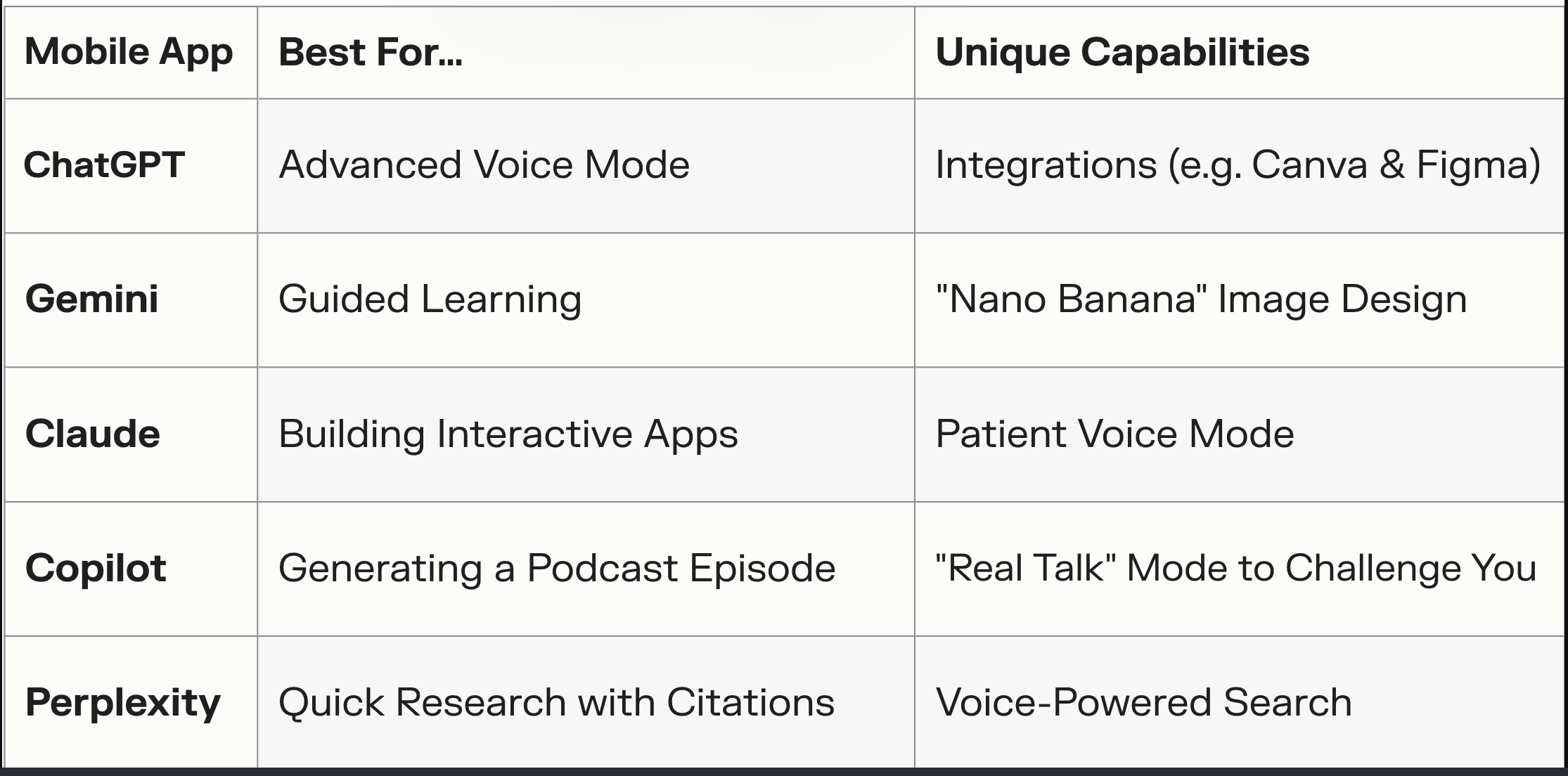 📱The Best Mobile AI Apps | 15-second summary of this post: Your phone is now a pocket AI studio. Design a presentation, get voice coaching, conduct research, or make a quick infographic. The biggest players — ChatGPT, Gemini, Copilot, and Claude — all offer numerous free features on both iOS and Android. And a growing group of alternative AI apps now offer private AI for free. [See my recommendations for free, private AI on your laptop.] Read on👇 for a guide to the most notable features of the top AI chat apps.ChatGPT: Your Conversationalist 🗣️ iOS & AndroidAdvanced Voice Mode is the ChatGPT app’s most distinctive feature. Ask it to play a tough interviewer or a skeptical client as you prepare for a difficult conversation. Or have it ask questions to help you make a decision. Most of what you can do on your laptop you can do in the ChatGPT mobile app. * Create an image. Ask for an infographic, a cartoon, or a photo illustration. See examples of seven ways I use these images. * Ask for deep research. Get a detailed analysis with dozens of sources. See examples of nine ways I use this research. * Study & learn. This new mode helps you strengthen your skills & knowledge.* Analyze files or images. Turn a handwritten note into digital text, or make sense of any document, diagram, or manual. When I can’t figure out how to assemble or operate something, this offers faster help than a Google search. * Use integrated apps. You can now access Canva, Figma, Spotify, Expedia, and other tools inside ChatGPT. Try prompting for a graphic within ChatGPT while waiting in line with your phone, then edit it later in Canva.👇Pulse is ChatGPT’s best new pro mobile feature. It creates customized notes for me every morning. The AI assistant synthesizes info from my chat history, my Google Calendar, and what I’ve expressed an interest in learning. This morning’s Pulse note, for example, included tactics for using new Substack features, Penguin stories for sharing with my daughter, and breakfast ideas I had asked about for my rice cooker and bread machine. These aren’t news updates — they’re personalized resources prepared by an AI assistant. I don’t use or recommend relying on AI assistants for news searches, especially given AI’s struggles with news accuracy. Caveat: Pulse isn’t yet available for free accounts. Gemini: Your Creative Partner 🧑🎨 iOS & AndroidThe Gemini app has five special features, in addition to its core chat capability.* “Nano Banana” image generation model. Edit photos, blend multiple images, or design a poster. Worth trying: ask it to turn any image from your phone into a record album, book cover, or billboard poster.* Deep Research. Generate exhaustive reports with citations whenever you need thorough background on an issue. Try this prompt: “Create a step‑by‑step plan to adopt [tool/technology] in a team of [size]. Include costs, training time, change‑management risks, and how to measure success. Cite case studies.” See a few of my tips for strengthening deep research queries. * Veo 3 video generation. Paid accounts only. Create 8-second clips with Veo 3.1, Google’s new video model. Experiment: create a slick moving background for a slide. * Canvas. Make an infographic, a quiz, or a simple game. Quick test: make a self-grading quiz to challenge yourself on something you’re learning. * Guided Learning. Put Gemini in teacher mode to help you gradually strengthen your understanding of anything. Try this: ask it to walk you through the history of any concept or tech you’re curious about. When I choose Gemini: I use it as an alternative to ChatGPT and Claude when I want particular kinds of image edits and creative image designs. I also use it to experiment with generating short video clips, for guided learning, and for research reports. Sponsored MessageShare anywhere. Stay brilliant.With Flourish, your interactive charts go wherever your story lives. Embed them in websites, blogs, reports, or campaigns. Each one stays live, on-brand, and beautifully in sync as your data updates. No coding. No fuss. Just visuals that travel beautifully.Claude: Your Mobile Studio 👷 iOS & AndroidClaude’s app has a new voice mode I like. It waits for me to tap the screen to signal I’m done, so it rarely cuts me off when I pause to think—unlike ChatGPT, which often assumes I’ve finished talking. You can choose from five voices. Create on the GoCreate Artifacts — interactive little applications — from your phone. You can make games, learning resources, document templates or other useful mini programs. You can also now use Claude Code from your phone. What I most value about Claude is its excellent Projects feature, which lets me organize relevant documents and instructions for each distinct area of work. I use other tools (like ChatGPT, Gemini) for images and video, which Claude doesn’t do, but I rely on Claude for assistance with alt-text, SEO text, project planning, and other tasks where understanding my context is crucial. Copilot: A Flexible Assistant 🧑💼 iOS & AndroidMicrosoft’s Copilot app is a good free option that’s similar to ChatGPT and based on the same OpenAI models. One distinction is a new “real talk” mode that will sometimes challenge you. This helps address the sycophancy problem of AI chatbots blindly affirming your statements. Other useful features: Copilot can generate a podcast episode on any subject (like this one about Wonder Tools). It can also generate an image, run a deep research report, quiz you on a subject of your choice, conduct a voice chat. Like ChatGPT, it can even help you understand something in your environment. Turn on your camera or load something onto your screen, then ask Copilot questions something you’re looking at. Ask it about fine print in a document, a confusing gadget, a troubled plant🌾, or anything else. Perplexity: The Quick Researcher 🧑🔬 iOS & AndroidI rely on Perplexity for help understanding complex concepts. The mobile app’s voice mode is especially useful for quick searching and getting a summarized response instead of a list of links. For niche searches, adjust Perplexity’s settings to focus only on finance info, academic sources, or social sites for Reddit results. You can also use Perplexity to search your Outlook email or your Gmail and Google Calendar📆 for messages on a particular subject. Tip: Turn on incognito mode in settings anytime you’re searching on a sensitive or private subject. And as with all AI tools, avoid giving a thumbs up or down to a query because rating it signals that you’re OK with it being read and analyzed. Read more about why I find Perplexity so useful🎯 Free & Low-Cost AI App Alternatives Locally AI 📍 iOS | FreeBenefits: Free. No log-in required. Fully private. No data tracking. Easy to use.Getting started. Pick a compact open-source large language model suited for your phone’s processing power. I considered options from Qwen, Meta, and Google. Qwen 3 supports 100 languages and Meta’s Llama excels at summarization. I picked Gemma 3 QAT from Google. If you’re a tech novice or don’t care about those details, just pick Gemma as your model and you’ll be fine. Brief wait to get started. I had to keep the app open for about two minutes to download the language model to my phone. You only have to do that once. How I used it: I recently asked for a custom workout, given my constraints (no equipment, limited time) and personal fitness priorities. The result was helpful and similar to what I got from ChatGPT. Nice features * Customize or personalize your responses by inputting a prompt that will guide the app across all the individual chats. You can explain your personal or professional circumstances, for instance, or your preferences for concise or detailed answers, or any other needs you have for how the AI responds to you. * Set up Siri shortcut. You can activate Siri and say “Hey Locally AI…” to run a local AI search privately with your voice. * Well-reviewed. People seem to like it: 4.8/5 average rating with 208 reviews.* Vision tools. You can use this private AI app for text recognition, object recognition or image comprehension. That’s useful if you want to use your phone privately to understand secure documents or convert personal handwritten notes into text. To get that benefit, within the app download the Qwen 2 VL model recommended for iPhone 15 or newer phones. Caveats* Not the top models. ChatGPT, Claude, and Gemini perform better for image analysis than the small mobile models this app enables. * Slow start. Expect to wait several minutes each time you download a new model, including the first time you use the app. * No plug-ins. I couldn’t connect this app to other services. Sponsored MessageFree event: Become an AI Builder in a Day (No Engineering Required) – Nov 6On November 6, 12-4 PM ET, join Section for a half-day of micro-workshops. Hear from AI experts and get practical frameworks you can apply immediately, and a certificate to showcase your new skills.Private LLM | iOS and Mac | $5 Nice features* One purchase for iPhone, iPad and Mac. Family sharing means you can share the app with five family members for free. * Choose from 60+ models. Lots of models available in this app aren’t options in Locally AI. That may not matter, unless you’re eager to use a very specific model. * Change AI models’ creativity level. Unlike Locally AI, this app allows you to adjust the “temperature” setting of your AI models to control how predictable or creative responses are. A model set to a low temperature sticks to more consistent, predictable answers, while one set to a higher temperature will generate more varied, imaginative replies. Caveats* Single chat stream. You can’t create multiple distinct chats in this app. Most other AI tools, including the Locally AI app, let you separate conversations into distinct threads for different subjects. * No help picking models. Figuring out which one to try is tricky with this app. You can click a tiny information button that links to a separate Hugging Face web page about the model, but there’s no easy-to-understand summary for novices. Locally AI has helpful concise summaries showing each model’s strengths. PocketPal AI | iOS and Android | Free Nice features* Fully Private. No conversations, prompts, or data leave your device. * Create custom “pals.” Set up multiple AI assistants or “personalities,” with different settings and system prompts.* Access models from Hugging Face. Choose from many small AI models. Caveats* May not work well on all Android phones. Depending on your phone’s age, the app might feel slow. A lot of Play Store reviewers reported this problem.* Mediocre ratings. 4.1 out of 5 with 1,200 reviews is OK, but not stellar. * The user interface lacks polish. The design isn’t as elegant as what you’ll find on Claude, ChatGPT, Gemini, or other top-tier apps. But it’s free, and if the AI responses are useful, you may tolerate a lower-quality interface. This is a public episode. If you'd like to discuss this with other subscribers or get access to bonus episodes, visit wondertools.substack.com/subscribe | 9m 56s | ||||||
| 10/17/25 |  🎯 My Private, Free AI Setup | Short on time? Read this 30-second summary of today’s post. 👇Download a free, private AI program to run on your computer. Use it offline without any subscription cost and avoid the risk of having sensitive info ingested into a large language model like ChatGPT, Claude, or Gemini. The newest versions of private AI tools like Jan run easily on my 2021 Mac laptop, cost nothing, are easy to use. They’re a good alternative to costlier AI platforms. 🔰 Quick start guide * Download and install the free Jan. Other good free alternatives to consider include Msty, Anything LLM, or LM Studio. * Open Jan and pick an open-source large language model. The model you use impacts the AI’s response style. You can switch anytime. I use the v1 model. * Try your first query. Here are a few quick mini prompts to start with: * “Summarize the pros and cons of using AI for [specific task].”* “Turn my rough notes below into a short summary and bullet points.”* “Turn this angry email draft to my service provider into a constructive message more likely to generate a helpful response.” * Adjust the app’s appearance settings, including font size and shortcuts. * Close other processor-intensive apps on your computer, like video editing tools, to reduce the likelihood of your computer slowing down.🕵🏻 Five reasons to use private AI* Save money: Avoid subscription fees by running AI models on your own computer. Generate unlimited responses without monthly charges. * Keep your data private. Using private AI on your computer ensures no data is sent to or stored on big tech firms’ servers. No conversations leave your device. You can even run these tools offline. * For sensitive legal, medical, financial or personal issues, ask questions without worrying about your data ending up in a large language model’s training data. * Work offline: Having full offline access is handy whether you’re traveling without WiFi, working in a remote area, or hesitant to trust a random public network.* Experiment with hundreds of open source models. Choose an open source large language model that suits you. Each is trained differently. Some are stronger at certain languages, others specialize in coding. New ones emerge regularly. Switch as often as you’d like. By contrast, ChatGPT, Claude, Copilot and Gemini limit you to the platform’s own models. * Tip: Use LM Arena to compare two models’ responses side by side. * Reduce your environmental impact: If you run hundreds of daily prompts, a local AI app may mean less use of Internet infrastructure and remote data servers.💫 Jan is an excellent, free, private AI tool* Platforms: Mac, PC, Linux. What I like about it* Fast and easy to set up and use. Jan takes a minute to download and install. Using Jan is as easy as using ChatGPT, Claude, or any other chatbot, though you do have to make an initial decision about which model to use. * Assistants. Create customized AI helpers for various purposes. One for translating Chinese, another for coding. Task it to “Act as a software engineering mentor focused on Python and JavaScript. Provide detailed explanations with code examples. Use markdown formatting for code blocks.”* Projects. Organize queries into distinct folders for easy access to subjects of interest without searching through hundreds of threads. * Integrations. Link Jan to Canva, Todoist, Linear, or other tools using MCP — model context protocol — connections. * Documentation and resources. Lots of useful documentation including a handbook and blog. What’s Next: Jan AI is developing mobile versions for iOS and Android and adding integrations to link Jan to other services.Partner MessageLighthouse is the leading newsletter for CEOs, COOs, CIOs, and Transformation Leaders focused on achieving success in the digital age. Join over 40,000 subscribers who gain insights into proven AI frameworks, high-ROI strategies with minimal risk, and leadership approaches that empower teams to excel in the age of AI. Subscribe for free.🩺 A Jan case studyBecki Lee, a Senior Technical Writer, uses Jan to explore health questions she wants to keep private. “I have a chronic illness I’m struggling to get diagnosed,” she emailed me. “So I created an assistant to help interpret test results and brainstorm possible explanations for my symptoms. Obviously, it’s super important to take this with a grain of salt (a chatbot is absolutely no substitute for a doctor). However, this helps bubble up conditions I can research further on my own, and it also generates questions I can ask my actual doctor.” ✨ More free AI options for Mac, PC or LinuxMsty The free version of this well-designed app has multiple unique features. Unlike Jan, which is completely free, Msty also has paid advanced features. Its best free features include:* A built-in prompt library with hundreds of options.* Special focus and zen modes that strip away side menus. * Create multiple personas, which are assistants with distinct personalities. Each can adopt a different style or approach in answering your queries.* Knowledge Stacks let you import document collections for analysis. These can include PDFs, Word documents, PowerPoints, spreadsheets, lists of YouTube links, or even an Obsidian vault. * Advanced features, like multi-step automations, require a paid subscription. I’ve only used the free version. It’s easy to use, powerful, and well-designed. I chose the Gemma 3 Anything LLMLike Jan, this is a straightforward open-source AI app that’s a good option for novice AI users. How it’s different from Jan* You can upload files for AnythingLLM to summarize* Enable it to make simple charts * Turn on Web search, which requires a free API key from Google or Serpa.* There’s also a new beta Android version. Caveat: It’s not quite as nicely designed as Jan, and isn’t updated as often. LM Studio This more developer-friendly option is less simple for beginners. What’s notable: Florent Daudens, an AI expert and educator who used to oversee daily editorial coverage at CBC/Radio-Canada, relies on LM Studio for private AI use. I asked him why and he said, “It’s practical, with a user/developer-friendly interface, quick updates when new models drop, a server option, and helpful model compatibility info.” In a LinkedIn post, Florent shared an example of using LM Studio on his laptop. He used Google’s Gemma 3 model to analyze plane photos for extracting registration numbers as an investigative journalist might, without sending data to external servers. Check out my follow-up post for more on private AI mobile apps. ⛔ Limitations of private AI tools* Feature limits. Many special features on other AI platforms won’t work on these private AI platforms. ChatGPT’s new Plug-ins for Canva or Figma, for instance, won’t work with private AI. You may not be able to export results directly to Google Sheets or Slack, as you can with other AI tools. * No interactives or advanced visuals. You can’t create infographics and visual illustrations like ChatGPT’s. No coding and hosting interactive applications, as you can with Claude or Gemini. No advanced searches with detailed citations like those from Perplexity. * Quality variation. Some open-source models have limited or older training data, so results for certain queries may be worse. For ordinary queries and text summarization, this quality difference may not be noticeable. * Slower speed. Depending on your query, you might wait longer with some open-source models than with ChatGPT, Copilot, or other private AI platforms. Speed hasn’t been a big concern for me so far. * Can’t handle as much text at once. A smaller “context window” means that private AI tools may not be able to analyze text blocks as large as those ChatGPT or Claude can handle. Some small language models may resort to skimming longer text. They may also be more likely to hallucinate details if asked for summaries of long, complex documents. 🧑🎓 Additional resources* Free, open-source AI tools for journalists curated on Hugging Face by Florent Daudens. Read more about why I like Hugging Face as an open-source AI hub.* Local LLM Group on Reddit, with 546,000 members. Keep up on notable research on AI and private AI tool development. * Helpful writeup about local large language models by Stephen Turner* LinkedIn Learning Course on private large language models and Jan AI This is a public episode. If you'd like to discuss this with other subscribers or get access to bonus episodes, visit wondertools.substack.com/subscribe | 9m 34s | ||||||
| 10/10/25 |  ✨ Claude Turns Ideas into Apps | Claude feels like a genie to me. With its Artifacts feature I can turn any idea I have into an interactive application, visualization, or graphic. Yesterday I created a Flashcard maker and a breathing app. No coding. Just a short AI chat conversation. No complexity. I dream up an idea, and Claude makes it instantly real. I iterate with chat to make it better. Read on for a guide to making the most of Artifacts with examples and ideas you can build yourself.✨ How to turn ideas into apps (no coding)* Create a free Claude.ai account or log in if you already have one.* Navigate to the “Artifacts” tab.* Pick one of the existing templates in the Inspiration gallery to customize.* If you don’t want to use a template, click “New Artifact” in the top right corner of the Artifacts landing page. Pick a category of interest (e.g. Games, Quizzes, etc). Chat with Claude to iteratively design an artifact.* Customize your Artifact by pasting or uploading specific content you want it to use, or by defining a particular color palette or design style. Explain how you want it to work or ask Claude to guide you with questions.* Test out the Artifact. Click “Publish” when you’re ready to get a shareable link and optional embed code.* Return to the Artifact later to update or change it. * 🔁 Repeat to make as many Artifacts as you want. Free users may run into rate limits.Sponsored MessageLet your data do all the talkingTurn spreadsheets into sleek, interactive visuals without a line of code. With Flourish, you can quickly create charts, maps, and interactive content that impress clients, engage audiences, and make your insights crystal clear.💡Try These: Apps You Can Make Right Now✏️ Master Any Subject (Study tools you can make)Create a resource to help you learn whatever you want. Use specific facts, diagrams, documents, or other materials to seed the assistant, or ask Claude to suggest relevant info. The flashcard maker I created lets me paste in some text, upload a PDF, or just describe a topic of interest. It instantly generates 10 questions for me. [See my prior post on using AI for Learning].My Example: Instant Flashcard Maker📊 Visualize Your DataIn addition to summarizing documents or transforming files, you can use AI to make sense of data. Ask Claude to analyze or visualize info in specific formats or with your preferred design sensibility. You can upload reference images or your style guide, or just specify style or tone.My Example: Visualize CSV Data🎭 Design Custom QuizzesIt’s now easy to make your own version of “Which Harry Potter House Are You?” quizzes. Pick a subject and supply some questions. Or ask Claude to propose questions and you can act as the editor. These can be just silly or they can help students or colleagues figure out where they stand on an issue.My Example: What’s Your AI Personality?🔗 Make Content InteractiveInclude a link to an Artifact in your next piece of writing or presentation to add an interactive element. Invite readers or viewers to try it for themselves. Ideas: a visual story summary, a quiz, infographic, dashboard, or a customized cost calculator. 🧮How to get started: Upload or paste content you’ve created —or a transcript, if it’s audio or video— and chat with Claude about interactive supplements that might be useful for your reader.Examples - WT Conference Toolkit Guide - Note-Taking Devices — Interactive Summary Table Sponsored MessageBento Focus | In the era of AI, noise is increasing. It’s time to take your focus seriously! ✅ Test Your KnowledgeTesting yourself helps identify knowledge gaps. You can upload specific material you’re aiming to master or just ask Claude to design a quiz Artifact for you on any subject. Give it context about your level and the kinds of questions you’ll find most useful, as well as your preferred quiz length.My Example: Liquidation preference quiz🎯 Build a Decision HelperFigure out which of multiple options works for you. This kind of interactive poses a series of preference questions to determine a result based on your answers. It guides decisions based on whatever criteria and grounding info you provide. To customize my own matching tools, I use my own writing, analysis and research to serve as the basis for the Claude Artifact. I based the following examples on my own research on AI learning modes and note-taking tools.Examples - Find your preferred AI learning mode - Find Your Perfect Note-Taking Tool🧘 Create Calm (Meditation & timer apps)Claude Artifacts can employ timers and graphics. To make a simple breathing app, I gave Claude instructions about the 4-7-8 breathing pattern. 4 seconds of breathing in; 7 seconds holding; 8 seconds of exhalation. I included a link to the source article from which I drew the information, and instructed Claude to run four cycles of the breathing timer for an activity that would last about a minute.Example: My 60-second breathing relaxation app🎮 Make a GameIt’s simple to make puzzles, simple arcade-style games, or word games. Describe the game you have in mind or ask Claude to give you some ideas to work with. Create your own version of something you loved to play as a kid, or a brain teaser to give yourself a playful mental break at work.Example: Word MorphOther ideas for what to make:* A specialized assistant for single-purpose tasks like generating a QR code, cleaning up messy notes, translating phrases, or assessing headline ideas* A banner image like the one above I made for this post* A prototype site like this mood canvas to share an idea with a colleague* A document or template like this PRD maker (for product requirements) to reformat your own content* Visualizations for creativity or quick prototyping* Campaign dashboards for sharing performance metrics* Sales pipeline forecasts or other interactive charts ⚠️ Limitations to Consider* Sometimes Claude leaves out a detail or a button doesn’t work. Other times, what you’ve envisioned doesn’t look quite right. Solution: You often have to prompt the model to make corrections, which it does well.* Artifacts don’t have built-in databases to store information. So if you create a habit tracker or content calendar, what you type in during one session won’t be stored for later. You can ask it to add an export capability, but if you need the tool to store data you can return to, you’re better off with a more sophisticated AI coding tool (for so-called '“vibe coding”) like Windsurf, Bolt, or Lovable.* While powerful, these Artifacts aren’t agents that can go out to the Web and interact with multiple data sources to update an app.🔄 Similar Tools Worth TryingGemini Canvas | Google’s Gemini also excels at creating great interactives and tools. I made this little alt-text generator for Wonder Tools with a short prompt that took less than a minute. I asked it to handle multiple images and offer two alt-text options for each. Canvas is free for all users; a pro subscription gets you access to a more powerful model. Perplexity Labs lets you generate detailed reports with infographics, create visual dashboards with business or economic data, or make other interactive graphics. Here’s an example of a family museum itinerary planner, and a coffee shop’s financial dashboard. Additional examples: Check out Perplexity’s Project Gallery for inspiring ideas. Caveat: Unlike Claude Artifacts and Gemini’s Canvas, which can be used for free, Perplexity Labs requires a $20/month subscription. What will you create next? Share your Artifacts in the comments 👇 or reply to this email—I’d love to see what you build. This is a public episode. If you'd like to discuss this with other subscribers or get access to bonus episodes, visit wondertools.substack.com/subscribe | 8m 57s | ||||||
| 9/26/25 |  20+ Kid Tools for Better Screen Time 🎨 | Not everything creative needs a prompt. The Web is increasingly flooded with AI-generated images and videos, much of it aimed at kids. Sometimes it’s nice to break free of that synthetic media. As a dad of 10 and 12-year-old daughters, I appreciate resources for kids and families that celebrate human imagination, curiosity, and hands-on exploration. I had a fruitful recent conversation about resources for kids with a fellow dad, Kevin Maguire, who writes the great newsletter The New Fatherhood. If you’re a dad looking for great reads and a sense of community, check out Kevin’s newsletter. (Also read Recalculating, by Ignacio Pereyra). Kevin wrote the section below about simplifying screens and shared the tip about muted.io.The rest of the apps and resources below are ones I’ve enjoyed in recent years with my wife and daughters. From coding with visual blocks to identifying plants on nature walks, these are some of our favorite tools for sparking creativity.🧮 Building Brains Without Bots* Scratch, developed at the MIT Media Lab, is a superb program for learning to code. It’s fun and free for kids — and adults. My daughters like assembling Scratch’s visual blocks on screen to create interactive stories, games and animations. It’s designed for kids 8 to 16. ScratchJr is a great alternative for kids 5 to 7. Free* Dash Robot lets kids program it to move, light up, and make sounds. It teaches block coding, like Scratch, and our daughters enjoy making up their own instructions to send Dash on creative adventures. For kids 5 to 14. $180.* Seek is one of our favorite family apps. Point the app at any plant, flower, animal, or bug you see on a walk to learn more about it. It’s given us insight into much of the greenery (& critters) around us. iOS & Android. Free Sponsored Message🎥 Guidde | Create how-to guides with AITired of explaining the same thing over and over again to your colleagues?Guidde is an AI-powered tool that helps you explain the most complex tasks in seconds with AI-generated documentation.* Turn boring documentation into stunning visual guides* Save valuable time by creating video documentation 11x faster* Share or embed your guide anywhereJust click capture on the browser extension. The app automatically generates step-by-step video guides with visuals, voiceover, and a call to action. The best part? The extension is 100% free.📚 Words That Work Wonders* Libby lets you access thousands of free ebook or audiobooks with a free library card. It works for more than 90% of public libraries in North America, and Libby can be found in 78 countries worldwide. Free* Khan Academy is the most robust online spot for helping kids with learning almost any school subject. It’s completely free. No ads. Khan Academy Kids has great learning activities and games for kids 2-8. It’s also free and ad-free, and it’s fun for both math and reading. FreeFamily Screen Time That Actually Works* Common Sense Media | Wondering if a show, movie or video game is age appropriate? Get a quick sense of whether it’s a good fit for your family. Free* Kanopy is a terrific free resource for educational videos, documentaries and classic films. Access it with your library card. A unique feature: watch Oscar-winning short films you won’t find on other streaming platforms. Kanopy Kids is a curated collection for learning, less commercial than the kids section on Netflix. Free* JustWatch | See which platform hosts a particular movie or show. Free* Nex | Like a Nintendo Wii made for 2025, this video game system gets our bodies moving with fun, non-violent, family-friendly games. It was easy to set up, pluging right into an HDMI port on our TV. It’s a little bigger than a Rubiks Cube. Four of us can play together. We like the sports, dancing and trivia games. Some titles are just for little kids (e.g. Elmo, Peppa Pig), but most are engaging for older kids and adults. The device costs $249 with five included games. An $89 annual subscription gets you 40+ more games.Read my Fast Company interview [gift link] with Nex’s founding CEO about how his game system has spread. 🎨 Making Music* Chrome Music Lab 🎼Compose little tunes, even if you have no musical experience. Explore digital instruments and sound games. Save your favorite clips to share. Google’s MusicFX is a fun alternative for generating music with a prompt. Free* Metronaut 🎶 This sheet music app lets kids play along with an accompaniment from an phone or iPad. It supports 20+ instruments ranging from strings and woodwinds to piano, guitar, and brass. $27/year on iOS.* Tomplay is another great sheet music app that works well on Android and iOS and includes a wider range of chamber music. I pay $82/year for it.* muted.io has a vibrant collection of interactive tools and visual references to help kids — or their parents — absorb music theory. Free [by Kevin Maguire]Art Adventures & Creative Experiments 🎨* Tate Kids — An Arty Playground. Play art games, watch cute videos, try out little projects, and stretch your artistic mind with this well-designed resource from one of the UK’s great art museums. Free* Make an animated drawing. Turn a sketch into a playful moving image. This service from Meta lets you turn coloring into animation. Free* Draw A Fish. This simple, low-fidelity game lets you draw a little fish with your computer mouse, then see it swim on screen. Free* Google’s Arts & Culture Experiments include dozens of playful free apps for learning about the worlds of painting, sculpture, music, and more. FreeSpark Curiosity * How to Raise a Reader by Pamela Paul and Maria Russo is a wonderful guide to fabulous books for kids. It grew out of this free NYTimes guide (gift link). As of this writing, it’s $9.51 on Amazon.* The Week Junior is a terrific print magazine. It’s aimed at kids 8 to 14, but my wife and I also enjoy reading it. The 32 colorful pages feature short curated stories about the news of the week. It also includes puzzles, a weekly debate, and photography pages. Cost: 25 issues/year for $49, or $59 for print + digital access. (See the magazine layout design)📱 Simplifying Screens [by Kevin Maguire]* Consider a Light Phone 📱Experiment with freeing yourself (and your kids) from smartphone addiction with a full-on dumbphone. Reviews for the 3rd edition have been glowing — Wired gave it 8/10. $699 for version 3 or $299 for version 2. * Try the Dumb Phone app. Simulate a simple device with an app that strips away everything but simple links to the core phone functions: camera, maps, calendar, and photos. Imitate a simple device without dropping $500 on the love child of a Nokia and a Kindle. Free or $10/annual; $30/lifetime.* The Dumbest Phone Is Parenting Genius. A landline for kids? If it’s not too late, consider a tactic from Rheana Murray’s Atlantic article: install a landline. Buy that hamburger phone you always dreamed of as a kid; go with a “landline as a service” company like Tin Can and their gorgeous house phones; or if you’re more technically inclined roll your own VoIP line for a fraction of the cost. The bottom line: delay the start of smartphone life.What’s a creative resource for kids that you love? Leave a comment 👇 This is a public episode. If you'd like to discuss this with other subscribers or get access to bonus episodes, visit wondertools.substack.com/subscribe | 10m 35s | ||||||
| 9/18/25 |  Gretchen Rubin’s Secrets of Adulthood: Live with Jeremy Caplan | This is a public episode. If you'd like to discuss this with other subscribers or get access to bonus episodes, visit wondertools.substack.com/subscribe | 16m 59s | ||||||
Showing 25 of 79
Sponsor Intelligence
Sign in to see which brands sponsor this podcast, their ad offers, and promo codes.